Like a lot of suckers, I’ve got an iPhone 3G. I was a little disappointed when iOS4 (stupid name, makes me think it runs Cisco IOS) came out and the lack of multitasking meant no screen rotation lock.
What really bothers me though, is how terminally slow the phone became under iOS4. I’m talking like slow to respond to touches to the screen, 5-10 seconds to start playing music/podcasts in the iPod application. Slow to scroll between the screens. Even when you bring it out of sleep and the passcode lock takes 20-30 seconds to respond to your key inputs.
I tried doing the backup/restore, to no avail. Same slug performance.
Following an offhanded tip which suggested the problem with the 3G might be that the storage is nearly full, I checked and found I had about 276 MB free space (as the phone reports). My 16GB 3G can’t hold all my music/podcasts, so I generally have it sync all the unplayed podcasts, a couple of dedicated music playlists, and then I have the infamous “fill up available space with music” check in iTunes set. This causes iTunes to fill up the rest of the phone’s free space with music. That sounded like a good idea to me so I’ve been using that since it was first available as an option.
So, unchecked it, and let the 3G resync. In this config I get about 4GB free. That’s a lot, but this was a test. I mainly listen to podcasts and my own music anyway (vain), so who cares.
Hot damn, sure enough the phone does not slug along nearly as bad as it used to. It’s still sluggish starting to play music/podcasts (I’m wondering if this is connected to the “show podcast info/lyrics” tickbox, since a lot of the pause is before the info appears on the screen), but the screenlock, scrolling between screens, and keyboard entry seem much better. Confirmation bias? I dunno. I mention all this as a public service message.
What I am happy about in iOS4 is that at last they seem to have fixed the “list of podcasts scrolls like crap” problem. Still not 100% smooth, but at least it doesn’t hang up and suddenly jump to the bottom of the list.
I don’t actually care about the wallpaper, the iOS4 can’t make the fixed-focus camera and no-video-recording any better, and I understand the no-multitasking, but damn I wanted that screen rotation lock.
The funny thing is, in a regular situation I’d think that this was a system that – when low on disk space – was having swap problems. Except that iOS4 isn’t supposed to use any swap. Hmmm.
TL;DR : A lot of the slowness was fixed by freeing up space on the iPhone storage, even though that shouldn’t affect it. YMMV.
This one is a small followup to my earlier discussion of how to pop of the capacitor of an Arduino Diecimilia so you can both disable the auto-reset and use debugWIRE.
At the time I did that post I had Duemilanove’s in my posession but I was doing the project with the Diecimila, so I didn’t really go into that board. The Duemilanove has the advantage of not having to change a jumper for the DC power/USB power, as it auto-switches.
The Duemilanove contains a trace that can be cut to disable the auto-reset. The pads on either side of the trace can be soldered together to re-enable it. It’s labeled “RESET-EN”.
I never made the mod to any of my Duemilanoves as I never needed it, but certainly nicer than the “pop off the capacitor” method, since it’s reversible with just a soldering iron and doesn’t require you to re-solder the chip capacitor. I’ve also wondered if you could solder a jumper onto the pads and so be able to enable/disable the auto-reset/debug at will.
But never mind that. A couple of days ago I got a new batch of Duemilanoves for projects. These ones I ordered were the ones that advertised that they were the ATMega328 version (as opposed to the ATMega168 on the Diecilimia and original Duemilanove). Here’s a look at the top and bottom.
Top View Underside
The board is marked with the appropriate logos and such, and I bought it from a reputable place, so I think it’s an authentic Duemilanove, as opposed to a workalike from the same design (there are lots of Arduino clones, since it’s open design, and there’s nothing wrong with them).
So I was working with this one today, and I thought, “huh, this looks different”. I lined it up against one of my existing Duemilanoves.
Old Duemilanove on Top, ATMega328 Version on bottom
I didn’t see it at first, either. Here, let me point it out.
RESET-EN pads are missing from ATMega328 Version
Yep, the newer ATMega328 version of the board (which shouldn’t be any different other than the chip plugged in the socket) is missing those “RESET-EN” pads. That’s disappointing.
Here’s a couple of views under my microscope, since I like using my microscope.
Original Duemilanove with padsPads missing from the ATMega328 version
What does this mean? Well, nothing really. Board still works fine, and you get the ATMega328 for more space. It just means that if you want to do the auto-reset/debugWIRE changes, you’re back to doing them by my “Pop off the capacitor” method. Have fun.
Here’s a departure. Today I’m going to give a little instruction in how to modify an Arduino board so you can actually do something useful with it – like debug it.
No warranty is expressed or implied in this. If you do this and you wreck your Arduino, your AVR Dragon, your wife leaves you and the dog eats your shoes don’t complain to me. Blah blah blah.
The Arduino (http://www.arduino.cc) is a very nice idea. Little boards based on the Atmel 8-bit line of microcontrollers. Nice and cheap basic little boards that have a USB connection, and an onboard bootloader so you don’t need another piece of hardware to program it. You program in a language they say is based on Processing, but to the user just looks like C++ with a lot of busy-work done in libraries for you. If you’re new to microcontrollers but want to do stuff, the Arduino is a good choice for a start. There’s also a significant communitybuilt up around the Arduino now, so you have lots of other people to compare with for help and ideas.
What’s nice about the Arduino is the hardware isn’t particularly bound to the pseudo-Processing-C++ language. If the day comes you become frustrated with the limitations on Arduino code and want to go on and be a full on Atmel Assembler/GCC nerd, you can. You can also ditch the onboard bootloader for more space, if you feel like it.
Speaking from my background, I do some embedded system stuff, and the frustrating part of the Arduino is the lack of an “ICE” (In-Circuit-Emulation)/”OCD” (On-Chip-Debugging) workflow. Sure, you can pepper your code with Serial.println() statements, but that only gets you so far if you’re staring at the board and asking “Just why aren’t you doing what I want?”
With previous Atmel microcontrollers I’ve worked with they have an interface called JTAG. A few years ago I went out and bought a JTAGICE clone so I could debug my stuff. JTAG is great.
Problem: The chip on the Arduino Diecimila/Duemilanove (ATMega168 or ATMega328), doesn’t have JTAG. Whoops.
The chips used in the Arduino use Atmel’s fancy new proprietary method called “DebugWIRE.” JTAG uses a ten-pin connector and uses I/O lines that your circuit might want during debugging. DebugWIRE allegedly uses just one – the reset line. I say “allegedly” since you seem to have to be hooked up via the ISP (in-circuit-programming) six-pin connector to make it work, but at least it doesn’t take out one of your I/O banks.
The barrier to DebugWIRE for me for a long time was the cost. Normally you had to buy the JTAGICEMKII. which is damned expensive (CDN$352 at Digikey. I seem to recall a couple of years ago that thing was $600. There aren’t any clones that I know of for the JTACICEMKII since DebugWIRE is proprietary. I think my JTAGICE clone was only $70 in 2005.
Enter… the Dragon.
The AVR Dragon is a nice little programmer that
Has USB (no fussing with 9-pin serial ports)
Does DebugWIRE, ISP, and JTAG
Is Cheap ($57.74 at Digikey. Not super-cheap, but not $352).
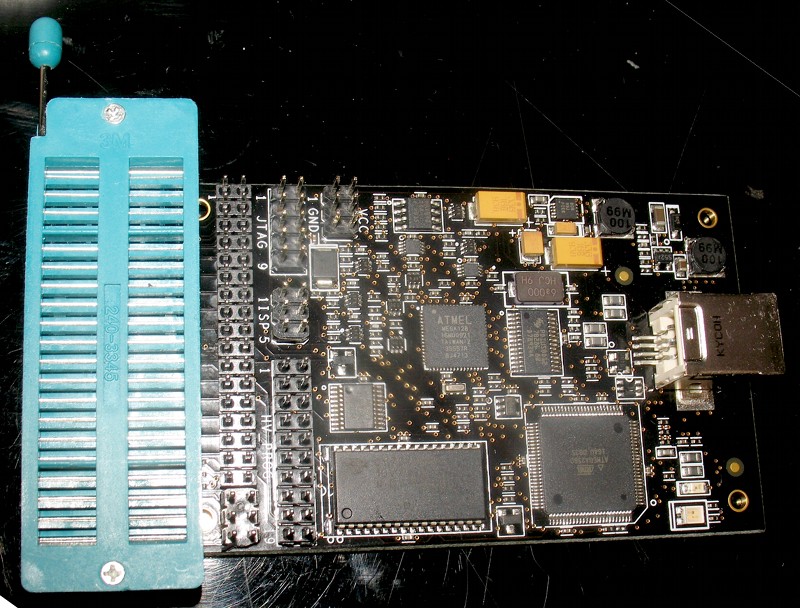
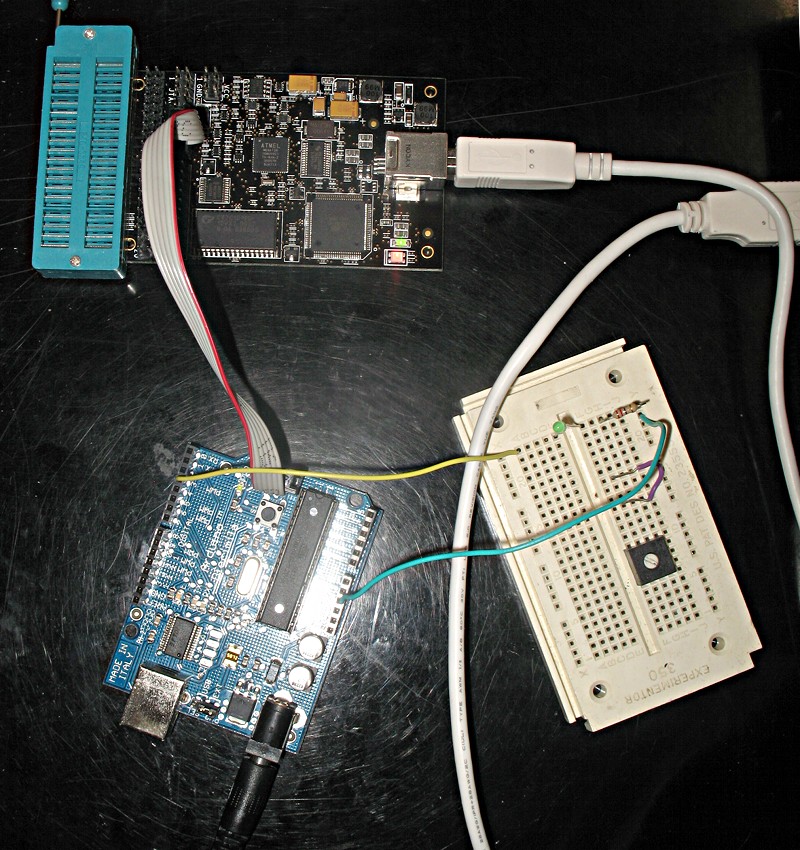
In the picture of my Dragon, I’ve added a 40-pin ZIF socket and some more pin headers. The default Dragon does have ISP and JTAG headers mounted, so it’ll work for this stuff right out of the box.
In my first experiment with the Dragon I was unhappy to find it did not work with the Arduino board. Hook it up, kinda get a response, but generally nothing worked right. Did some reading, did some looking at schematics, and here’s the problem:
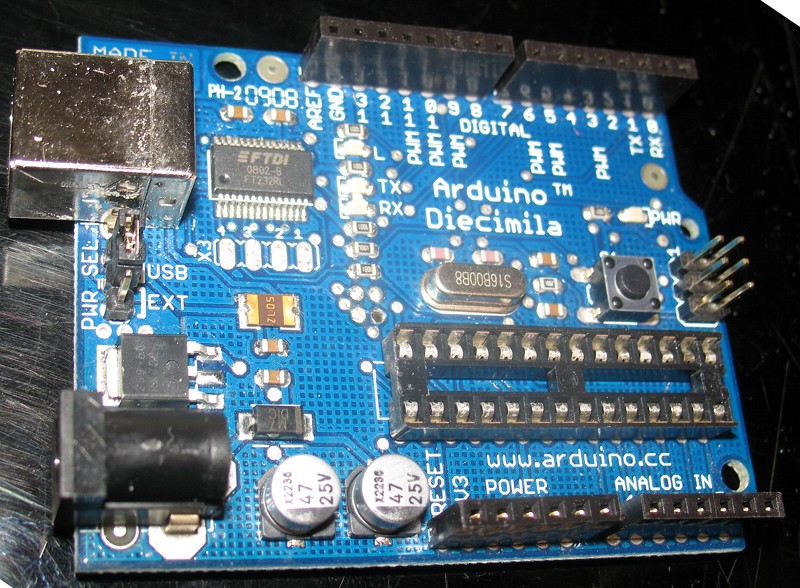
This is for an Arduino Diecimilia board, the Duemilanove might be a little different, check first.
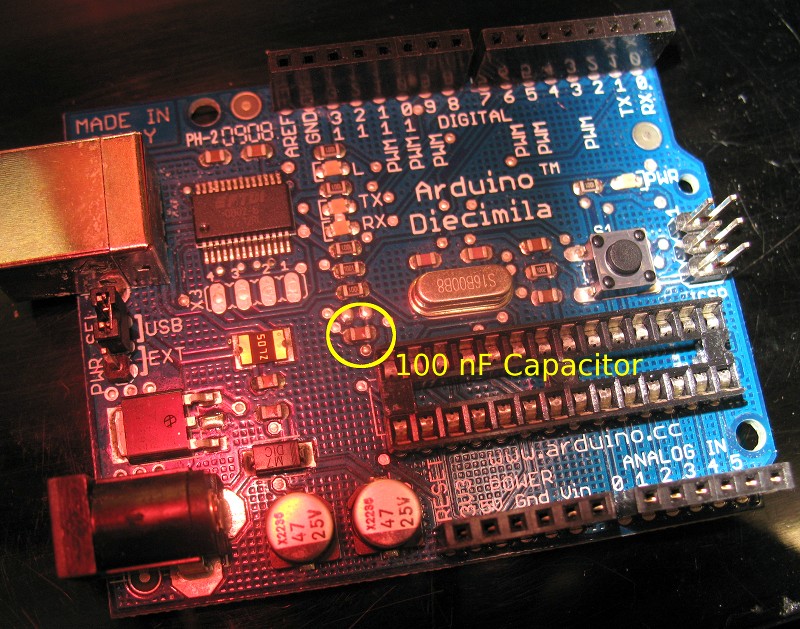
One of the nice things the Arduino does for the casual user is eliminate the need for fussing with bootloaders and external programming hardware. One trick it uses is to trigger the RESET line via the USB controller chip – this way when you go to “Upload” your program from the Arduino IDE it issues a board reset (thus activating the bootloader) and slurps up your code over USB. The problem: it does this by tying one of the USB FTDI chip serial control lines to the ATMega168 RESET line via a 100 nF capacitor.
Remember, DebugWIRE uses the RESET pin to do all the chip control and debugging. The protocol is proprietary, but let’s be realistic – there’s no easy way to do On-Chip-Debugging via one stupid pin and not have to signal the hell out of that pin – who knows in what weird ways. With this 100 nF dude in place, DebugWIRE gets all confused and… you get disappointing results.
So I figured, I spent my $57.74, and I have some time, I’d see if this assertion was correct. I tracked down in the schematic (shown above) and from the Diecimila page what component would have to be removed. I couldn’t trace very well on the nice little board itself, so I dug out the schematic in Eagle and made sure of the location of the capacitor to be removed in the board layout. (Aside: Eagle is nice, free to use for small things, cheap for non-profit hobby folks).
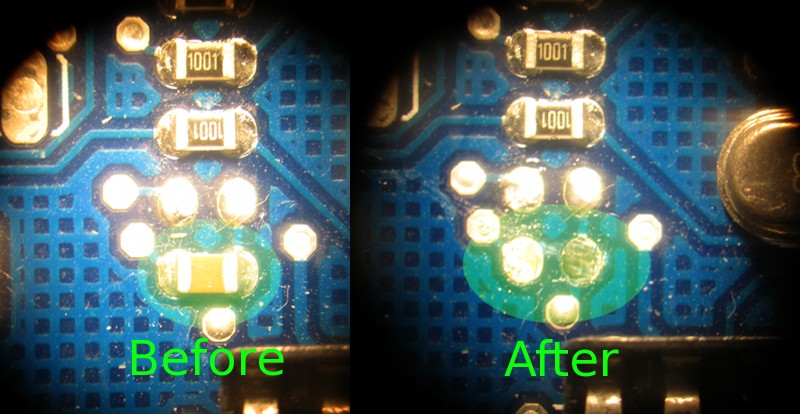
As lots of people will tell you, hand-soldering with surface-mount components is a pain. Luckily you don’t have to solder anything onto the board, you just have to remove the one there. I did it my favourite way, which is looking down a stereo dissecting microscope – which you can buy off eBay for a hundred bucks. If you’re going to solder small things and you’re half-blind like I am, a microscope is worth it.
So, a quick trip under the microscope. I took out the Atmel microcontroller from the board (it’s in a socket, hey hey smart people) to make sure I didn’t destroy it by accident. Heat up the pad with the iron, use a little soder-wick, use a little pressure and the capacitor pops off. You could use a vacuum desoldering gun, one of those spring-loaded jobs, or you could probably just cut the capacitor in half with an x-acto knife if you’re so inclined, I suppose.
That was pretty easy, wasn’t it? If you were super-ambitious you could wire in a jumper so you could engage the capacitor when you weren’t needing to use the debugger. I wasn’t that ambitious. Here’s why you might want to consider this:
You’ll recall from earlier I said that Arduino’s IDE used this capacitor to auto-reset the board via USB when you went to do a code upload. Well, thanks to this surgery that capability’s been removed. What that entails is that when you want to program the Arduino now, you have to manually hit the big reset button on the board a couple of seconds before the Arduino IDE attempts to download it. Arduino’s IDE does a compile before an upload, so in my case I just wait for the message about a successful compilation to appear and hit the reset. Chip goes into bootloader mode, IDE triggers a new upload, everything’s great.
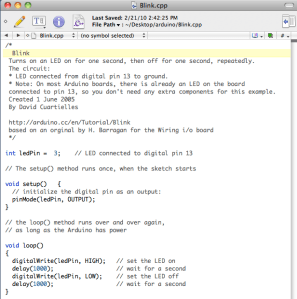
So let’s consider getting setup for a DebugWIRE session on the Diecimila. We’ll use this boring demo code from the Blink demo that everyone can understand:
This is a graphic because WordPress\’ code tag doesn\’t work right.
I used arduino-0017 for this. I’ve heard with 0018 that it changes handling for locations of compiled code, so take that into account. Compile the code with the Arduino IDE and upload it to the board, and watch the hardware perform as it should.
Now, hookup the Dragon via the ISP connector
Hardware for debugging is only half the magic. The other magic is AVR Studio 4, which is Atmel’s own free development environment for programming Atmel stuff. Couple this with the free GCC compiler WinAVR. AVR Studio does Assembler, and if you have WinAVR installed will also let you jack in and program with GCC (C normally, C++ if you’re a risky fellow). You’ll need WinAVR for this experiment, for reasons that will become obvious.
This is important, because microcontrollers like the ATMega168 don’t ‘speak’ C, they speak assembler opcodes. When you program it you’re downloading a bunch of assembler hex bytecode that actually makes the chip operate. AVR Studio lets you jump one step back and use your GCC source code to step through program operation on the chip.
Here’s why this works: although Arduino’s language is called a variant of “Processing”, under the hood it’s really just GCC C/C++ with a lot of nice libraries for handling the hardware easily. When the Arduino IDE compiles, it invokes the GCC compiler and produces a hexcode file to upload to the Arduino.
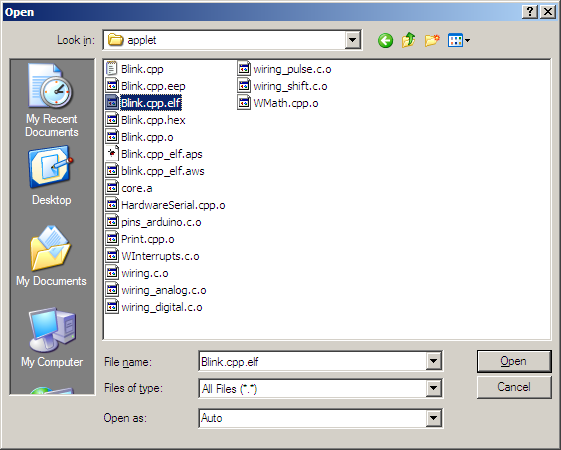
So this means – you compile your code in Arduino’s IDE, then you load the compiled project into AVR Studio. In AVR Studio 4 you open an existing file, navigate into the subdirectory called “applet” under where the “Blink.pde” source was saved, and open the file that ends in “.elf” ELF is a format that AVR can use to “connect the dots” between the .hex you loaded onto the Arduino, and the Arduino (secretly C/C++) source code you actually wrote. AVR Studio will want to save your project as a new project, which you should.
Note you don’t have to recompile anything with AVR Studio, just open up the .elf in it, and AVR Studio will take over.
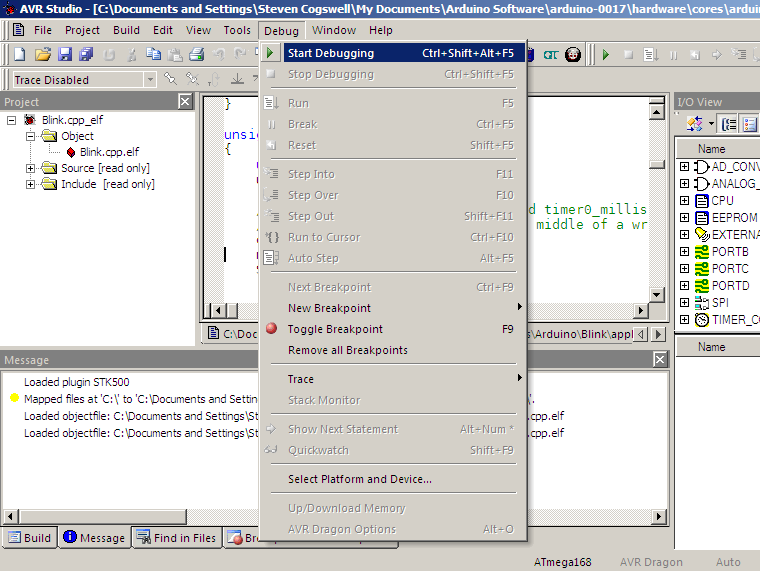
Then it’s just a matter of hooking up the Dragon and configuring it in AVR Studio. Configure your project to use the AVR Dragon (not the Simulator) and set the installed chip type correctly (ATMega168 in this case). “Select Platform and Device”. .
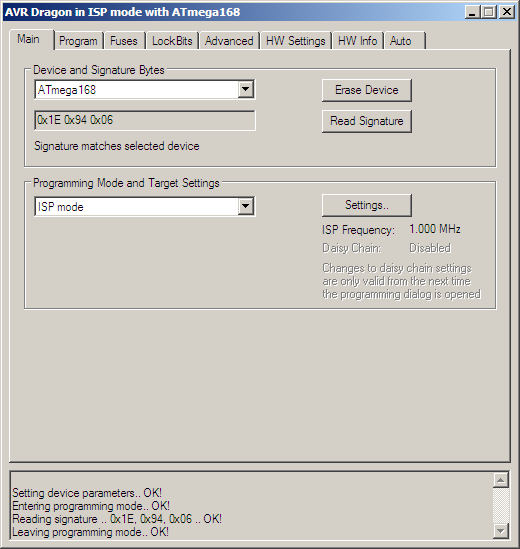
Tell it you’re using ISP to start. With the right chip selected, pick “Read Signature”. This makes the Dragon talk to the chip, and find out who it is. If you have trouble with your hardware setup this is where you’ll find it first. Make sure it reads the correct signature before you go any further.
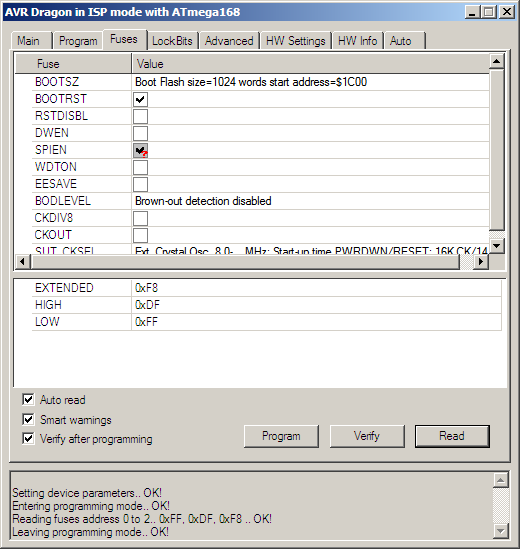
You can check the fuses of the chip (more on this later): Fuses are ATMega settings that are stored on the chip, like which interfaces are active, and the chip’s reset condition. If this is your first time looking at this board, take note of all the fuse settings in case you goober them up and have to reset them to the Arduino’s default settings.
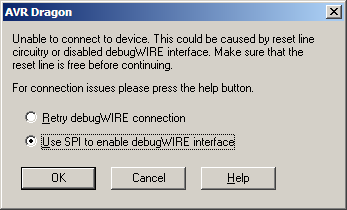
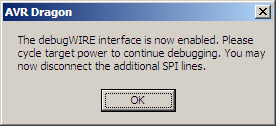
Then it’s just a matter of starting a debug session (“Start Debugging”). If your chip isn’t in funky DebugWIRE mode AVR Studio will prompt you to change it. Here’s where things start to get dangerous. Once you enable DebugWIRE, you can’t use the ISP interface anymore (the SPI interface is disabled). This means if you goof something up in DebugWIRE mode you can’t use the ISP or the Arduino Bootloader to reprogram the chip.
This isn’t what some call “bricking” the chip. It’s still perfectly fine, you just have to get it out of DebugWIRE mode first. The problem is there’s only one spot to actually do that, so you tend to forget to do it. That’s in the Dragon programmer options. Once you disable DebugWIRE everything goes back to normal.
If you’re like me, and you accidentally did goober your chip up, you can pull the chip and put it into another programmer (like your Dragon, if you’ve outfitted it with the sockets, or an STK500 in my case) and use the high-voltage programming mode. HVPP mode doesn’t care about SPI being enabled or not, and is how I saved myself every time I did a “whoops, screwed that up, time for a reset” while figuring all this out. This is where those fuses are important. If you use HVPP and muck up the fuses for bootloader and boot reset configuration, the Arduino’s Bootloader will mysteriously work exactly once and never again, making you reflash the bootloader code. I know, I did that. The bootloader code is in the Arduino software directory, with a .hex for your particular board. You can reflash it to the chip with AVR Studio.
Protip: To get the chip out of DebugWIRE mode, you just have to start a debug session with the Dragon in place. You don’t have to have the actual code that’s on the Arduino at the moment. Just load up something (like the blink.cpp.elf project), go into the Dragon options and just disable DebugWIRE. Presto, good as new. Someday Atmel may fix this deficiency in AVR Studio, but this works for now.
So… hardware hooked up? DebugWIRE enabled? Well hell, start debugging. AVR Studio will find all your source code files and give you all the magic you need to single-step and breakpoint operate your Arduino. You’ll find your code has some extras in it you didn’t write, since that’s the nature of the preprocessor that Processing uses to get the code to compile by GCC, but that’s a story for another time.
That’s a lot of words to say “remove a capacitor and it works.”
I know it’s so tedious to go to all these posts, click the little arrow thingie, go “yuck”, click delete, and have to click the next one. To make it easier for you to delete them, here’s all of 2009 in one zip archive. They’re in mp3 format, and nothing different from what’s already been posted. The archive is about 468 MB. It comes in at four hours, twenty minutes, and 33 seconds of audio. Don’t say I didn’t warn you.
forte: Some people are fussy about licences. I’m not, really. Well, no actually I am – but I recognize that none of you have read down this far. If you make any money from this, give some to me, or someone who needs it, or I’ll punch you in the face, or maybe I won’t. Here, let me paste a little something in below.





 The inability to follow simple instructions

You must be logged in to post a comment.