Invalid Opcode at 0027 with Spinrite

I’m only making this post because if you’re searching the intarweb for the answer to this like I did, this is probably it.

I was trying to use my copy of Spinrite 6 on someone’s computer to resolve their bad hard drive issues. This was a Dell XPS430. When you would try to start Spinrite from the cdrom drive you’d get this strange error:

Invalid Opcode at 0027 0004 0293 0073 0000 0000 F800 01E1 6800 728E FFF0 76F8 51E2

Which is not helpful. This turns out to be associated with the RAID controller on the XPS430. Spinrite can’t work with the drive(s) with the RAID controller active. Go into the BIOS setup (F2 at startup), and turn off the RAID controller. Then Spinrite will start normally and let you work on the drives. Remember when you’re all done to turn the RAID controller back on before you reboot back into Windows.

That’s it. Hope this helped you.

More on the Speakjet and TTS256 Chip

As fun as it is to use the Magnevation Speakjet shield for the Arduino, perhaps you want to do an application where you don’t want to have to program all those stupid codes, as I showed in an earlier post.

At that time I mentioned the TTS256 chip from Sparkfun, which is essentially a little text-to-speech dictionary chip made to work with the Speakjet. You pump in some regular boring text over the serial connection to the TTS256, it converts it to that phoneme stuff and presto, the chip speaks.

At the time I did that previous post I didn’t have a TTS256, but now I do. Sparkfun have a very nice tutorial on how to wire up the chip into your Speakjet shield. That tutorial is really good, and has demo code and so I will repeat none of it here.

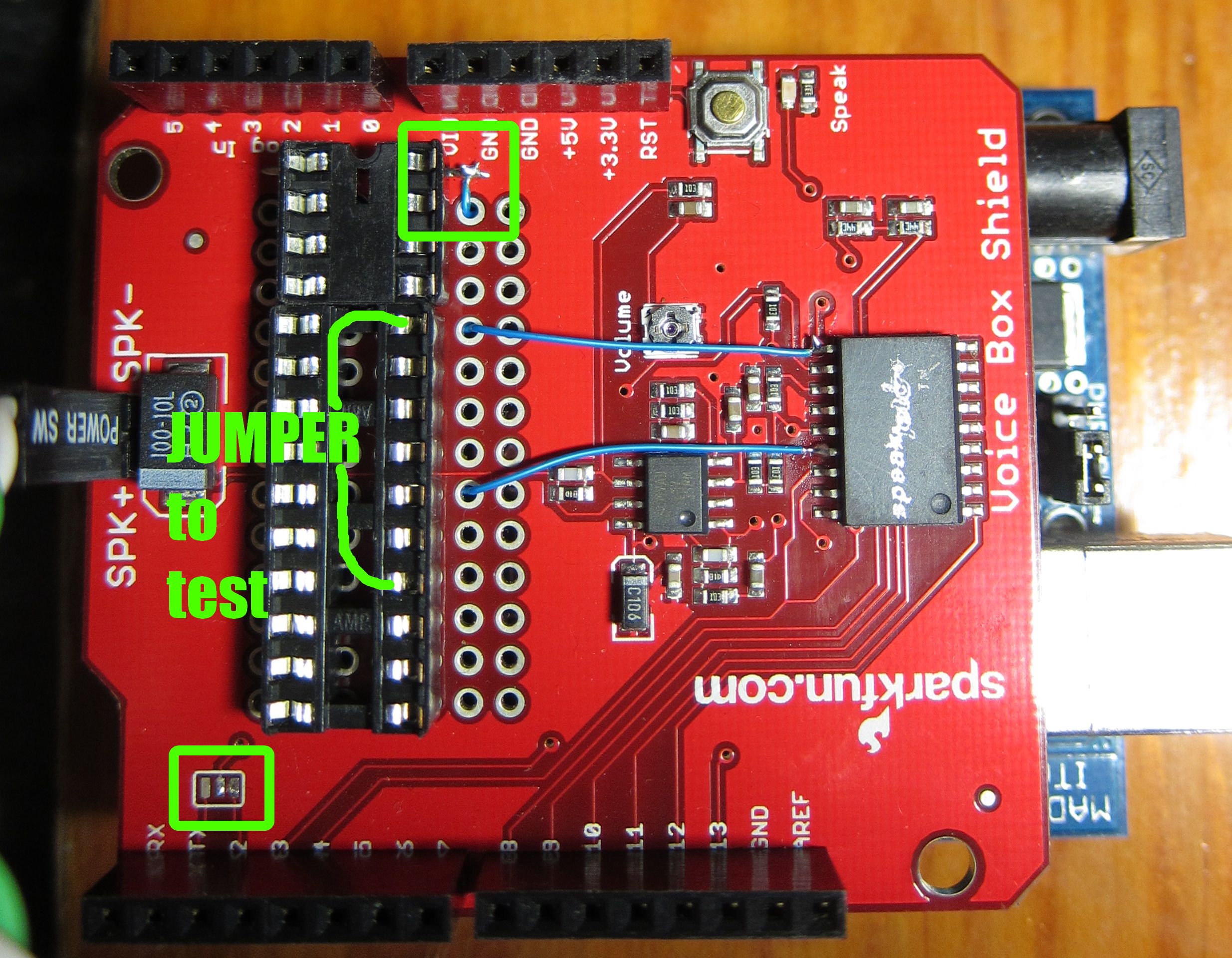
I followed the instructions as shown and had no problems, but the difference to what I did is that rather than solder the speakjet onto the shield, I soldered on a 24-pin socket (technically two sockets, since I didn’t have a 24-pin, but the effect is the same). The advantage of doing things this way is that if you want to go back to the ‘old’ way of using the Speakjet – in direct phoneme mode – all you have to do is jumper two areas in the socket and it works as it did before you ruined it.

Seriously, always use a socket with a through-hole part if you can get away with it. Makes replacing the chip a dream when you blow it up.

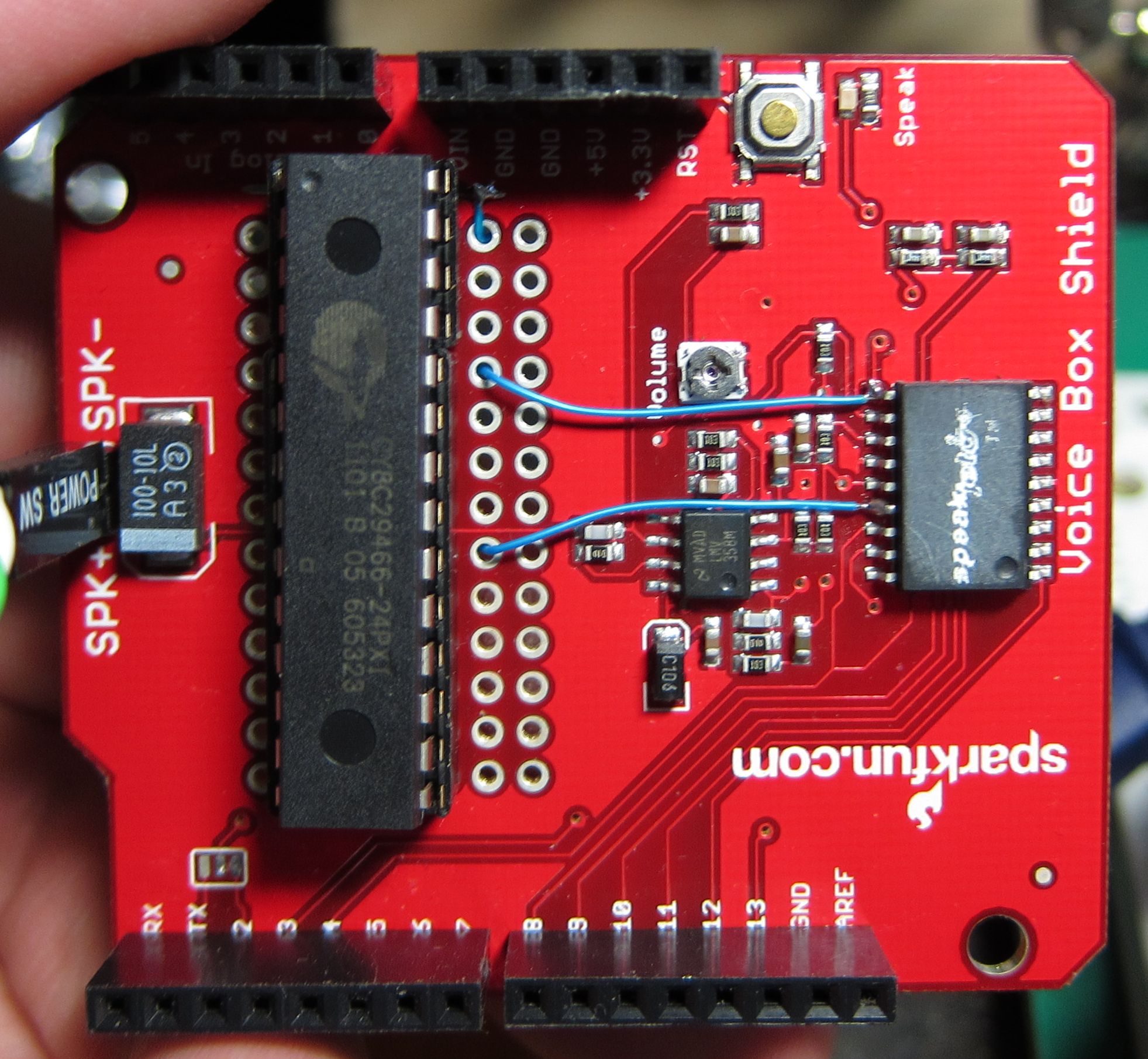
I have the ‘newer’ version of the board which has the surface-mount version of the speakjet (the tutorial has the through-hole version), but the pins are the same so the locations of the solder points don’t change.

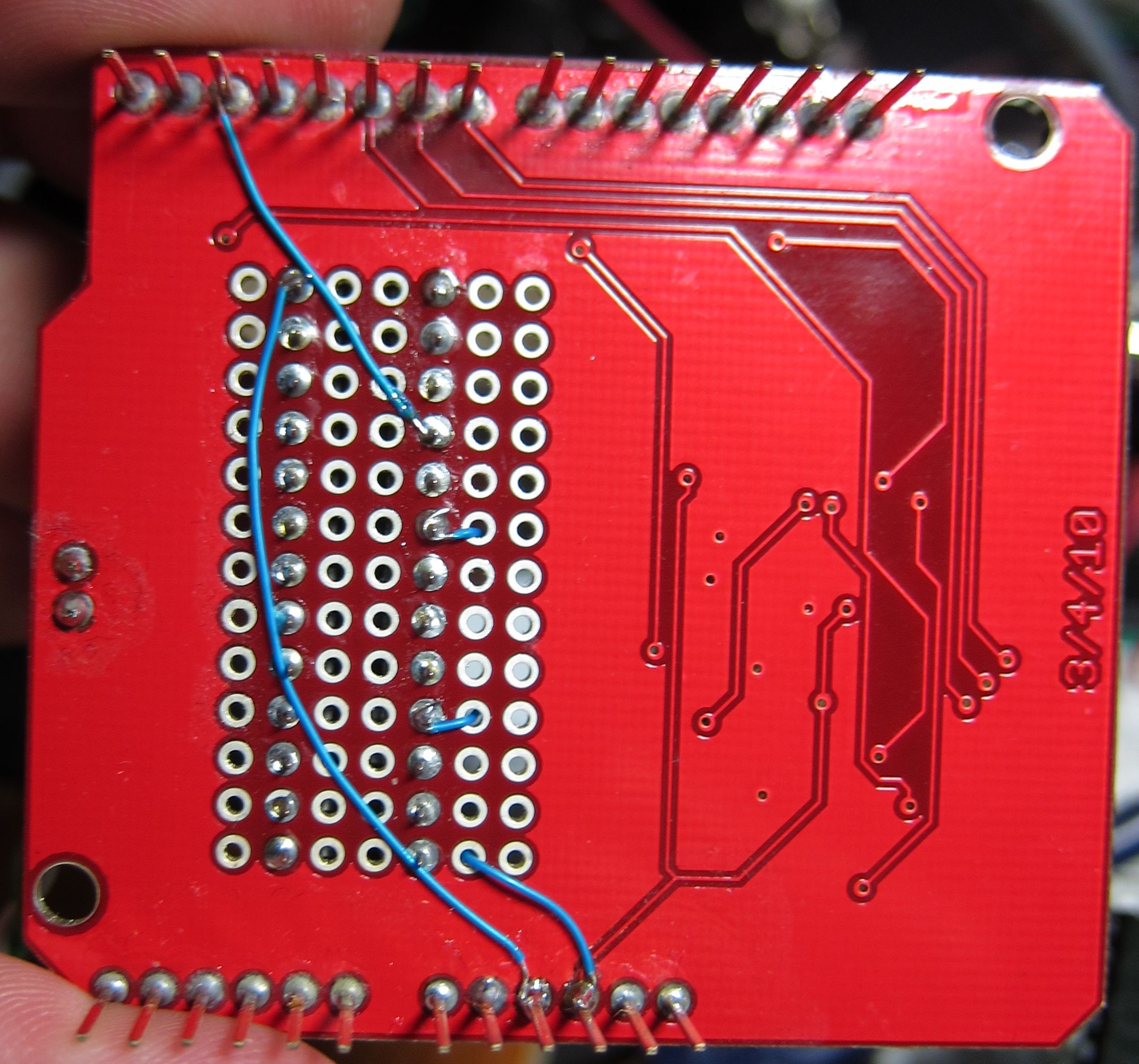
Also, the sparkfun pictures are good but aren’t so clear where the connections are, so I tried to take some clearer pictures.


Don’t lose your shit when you lose your shit.

Ever had your laptop stolen? That would suck, wouldn’t it. It’s pretty inconvenient to be without your facebooks and your twoofters, sure, but what’s really inconvenient is all your information getting into the hands of some thieving bastard.

Sure, in most cases people who steal your laptop are going to just sell it to some pawn shoppe for crack or linden dollars. In lots of cases they’re just bozos and take it home and start using it themselves. The problem is that if you’re like most people, your personal info is still on that machine for them to access.

I’m not thinking of stupid stuff like those ‘pictures’ of you and that guy’s wife, or all your l33t torr3ntz of Master Chef. I’m talking about stuff like your banking passwords, your email passwords. Use Firefox/Chrome/Internet Asploder? Do you have it ‘save passwords’? You’re screwed. Have your email program remember your password? You’re screwed. Lose your laptop and in a short time, a determined thief can clean you out.

What about your iPhone? Your Android phone? Same thing. There’s the inconvenience of having your shit stolen (or just lost), but the terror knowing that all those camera phone pictures of you and that guy’s dog wife are loose and in the wild.

So take some steps to keep yourself from freaking out.

You have to do these steps before you lose your stuff. Don’t do it after because that would be stupid.

Backups

I’ve been harping with you miserable fucks for years now to make backups, and you still don’t. This will also have the side benefit of saving your ass if your hard drive dies or you just accidentally drop your laptop off a bridge.

You have no excuse. Backup and Restore is built into Windows 7 now, and those insufferable mac people have had this for a while as well. You don’t have to do anything, you just need to set that shit up. Set that shit up already.

Disk Encryption

Yes, encrypt your damned hard drive. If you’ve got a portable machine that people can walk off with, you want to do this.

Using Windows? Then use Truecrypt or Bitlocker and enable the “whole disk encryption”. Using a Mac? Turn on Filevault for fuck’s sake. The Filevault in OSX Lion will encrypt the entire drive, and Filevault in 10.6 and lower will encrypt your home directory and make it safe. These are Free.

Yes, you can even do disk encryption in Linux. Don’t worry, nobody wants to steal your linux laptop.

The nice thing about using disk encryption like this is that it takes almost no effort on your part, you spend a few minutes clicking the mouse (I know that’s hard for you), and it’s done. Then all you have to do is remember your damned password.

Passwords

This one is kind of simple. If you have a computer, set it to require a password to log in. Sure, if you haven’t encrypted the disk it’s fairly trivial to bypass that, but look at who most thieves are: morons. They aren’t going to try to beat the password, they’ll just move on. It also keeps casual people from poking at your shit.

For your other passwords, use something like 1password, Lastpass, Keepass, or Supergenpass or even the built-in sync in Firefox and Chrome to manage your passwords. That way you have them synchronized off that laptop, and you can systematically go and change all your passwords – which you should do if your laptop gets stolen.

Scorched Earth

Here’s where you break out the heavy artillery. Remember you have to set these up before your shit gets stolen. If someone steals your iPhone/Android/Mac/PC, you want the ability to either

  • Get it back (unlikely)
  • Prevent them from using it

If you’ve encrypted the drive, don’t have an easily guessable password, and haven’t written it on a sticky note inside the case lid, that will probably do the job right there. The thieves’ only recourse will be to format the hard drive (destroying your data, keeping it out of their hands).

There are several solutions to tracking down your lost stuff, which is especially important for iPhones/Android phones, which can be pretty trivial to break into. For the iPhone it comes free with the phone: Find my iPhone is a service you had to pay for MobileMe to get, but is now free. Set this up right now. It lets you track the phone’s location (also good if you’ve just lost it behind the couch), put messages on the screen (“give me back my phone you knob”), or – most useful – wipe the phone from remote so nobody can get at the stuff on it. Then your phone just becomes another black market phone for drug dealers and terrorismists.

I don’t have an Android phone, but there are solutions for Android including Prey for Android. I’m sure you know a hundred better ones, and I don’t care.

For the laptop, there is the Prey Project, which is free for three machines – you can pay for more if you’re filthy rich and own so many computers. Prey will let you shut the machine down, get pictures from the webcam of the thief, location, etc. It’s free – so why the hell not? There are other solutions like Lojack, but I have no experience with them. I’m sure you’ve used a hundred better ones, and I don’t care.

Let’s face it: if you go to the cops with the exact location of the criminal, his picture in a mug shot, and him holding up a big sign saying “YO DAWG I STOLE THIS GUY’S LAPTOP”, that’s still not going to be enough to get cops to get off their donut-eating behinds to come out and do something about it. I have first-hand experience with this aspect of law enforcement. So the next best thing is going to be just being able to shut down and wipe the machine from remote to keep their grubby mitts out of your stuff.

The point is, setting up this stuff is easy, and is well worth it for the peace of mind you get when your shit gets ripped off.

So, you want to move to OSX Lion.

Want to move to OSX Lion? Concerned? Be Safe:

  1. Make sure you have a Time Machine backup. If you don’t have a time machine backup, you’re a fool.
  2. Make sure your machine can actually run OSX Lion, “Mac computer with an Intel Core 2 Duo, Core i3, Core i5, Core i7, or Xeon processor”. No, your G5 will not run OSX Lion
  3. Use SuperDuper or CarbonCopyCloner to make a clone of your existing system out to another hard drive. Buy an external drive, or buy a drive dock and buy bare drives to plug into it. Docks are great for Time Machine backups too. Do not whine that hard drives are expensive. How much is your time worth to you?
  4. Buy and download the OSX Lion Installer. Don’t pirate it, for fuck’s sake. It’s only $30. Save a copy of the Installer somewhere safe, make an installable USB Key or DVD while you can.
  5. If you’re using Filevault, turn it off (and you should be, if you’re using a portable machine). It’ll make transitioning easier, and you’ll want to enable the “whole disk filevault” after Lion is installed.
  6. Install OSX Lion to the SuperDuper’d Drive and not your internal drive. Don’t do anything to your internal drive.
  7. (alternately: install OSX Lion to the internal drive, and disconnect your SuperDuper’d drive for safety. This is more work to get back to normal though for when your OSX Lion goes wrong.)
  8. Boot from the drive you put OSX Lion on (the SuperDuper’d drive)
  9. Find out exactly how many Rosetta apps you didn’t know you have. Start looking for replacements, since Rosetta is dead. PowerPC has been dead for years. Move with the times. I’m also looking at you, stupid developers still shipping PowerPC code
  10. Use it like this for a few days. Try out everything you normally use to find out it doesn’t work anymore. Keep track. Nicely ask developers to get OSX Lion versions out.
  11. If it doesn’t work out, don’t worry. Just boot from your untouched Snow Leopard drive, carry on as if nothing happened. If you fuck things up, use your Time Machine backup to save your ass.

Did that all turn out nicely? Fine. Your choice at this point:

  • Install OSX Lion to your regular drive
  • SuperDuper your external clone drive with OSX Lion back to your internal drive. Disconnect external drive and keep it safe.

Make sure to keep your Time Machine backup for when you need to roll back.

Never work without a net.

A Too-Simple Arduino Library for Handling the Seeeduino Relay Shield (and Generic Relays)

Again, no music. Lucky dogs.

I discussed the Sparkfun Voicebox Shield in a previous entry, and also as a component of that same project I purchased a Seeeduino Relay Shield. Sure, normally I’d just hack up my own PCB for something like this, but it was only twenty bucks and I’m pretty sure I couldn’t build something comparable that cheap and get it that fast.

The relay shield has four relays that are optoisolated, which is a damned useful thing to have when working with 120 volt switching systems, as it lessens the odds of you accidentally turning your microcontroller board into a little charred pile.

This board also has an XBee socket on it, which I was singularly uninterested in, as I don’t have any XBee stuff.

The Seeeduino relay shield is pretty simple in operation: four relays are controlled by four of the digital lines on the Arduino. Nothing simpler. Assert the digital line on the Arduino, and the relay closes. Each of the relays has a NO (normally open) and NC (normally closed) connection, so you can use them in either orientation for your switching logic.

Given how basic this hardware is, it seems pointless to write an encapsulating class library to handle them. So I did it anyway. When you’re writing software projects it’s nice to do something “small” and “easy” to remind yourself of how things go together. So this library serves more as an example of how to write other libraries. The Arduino Playground has an example showing how to write a library, but this is a complete code example that’s actually useful (cough). Rather than being a library that you have to copy over to your Arduino user Libraries folder, this is all encapsulated as a multi-file (multi-tab) sketch, so you can view all the files at once. Plus, from the hate mail I’ve received it seems some people have problems figuring out how to install an Arduino library.

Although this is written with the Seeeduino in mind, the hardware is so generic I figure it should work for any relay control situation, just change the pins. Its purpose is to make reading code involving relays easier (encapsulation).

Since a relay is either “on” or “off” (and whether that’s open or closed depends on whether you use the the NO/NC connection), all you really need is:

  • Function to turn the relay on
  • Function to turn the relay off
  • Function to return the state of the relay (on/off)
  • A housekeeping variable holding the state (private)
  • Bonus: a function to toggle the relay state between on and off, based on what state it was in

You can probably think of a million more complicated functions this absolutely must have. I couldn’t. There’s no XBee support in this library, because there are libraries already for that. Also, I don’t have an XBee to test with.

The library code itself doesn’t use it, but the demo sketch uses the Bounce library, which is a generally useful library for handling buttons in your sketch.

You can download this entire tiny arduino sketch form here. You can download the library from github.

Here’s SeeeduinoRelay.h, which has the class definition.

#ifndef SEEEDUINORELAY_H
#define SEEEDUINORELAY_H

#include "WProgram.h"

// These are the pins that control the relays on the Seeeduino board.  
// If you are modifying this to work with different relay configurations, 
// these are the pins you need to change. 
#define RELAY1PIN 7
#define RELAY2PIN 6
#define RELAY3PIN 5
#define RELAY4PIN 4

// Class Definition. 
class SeeeduinoRelay
{
public: 
  SeeeduinoRelay(int RelayNum, int state);    // Constructor 
  void on();    // Turns relay on 
  void off();   // Turns relay off
  void toggle();  // Toggles state of relay between on and off
  int state();    // returns state of relay (LOW/0/off or HIGH/1/on) 
  int isRelayOn();   // Returns TRUE if the relay is on , false otherwise 
  int isRelayOff();  // Returns TRUE if the relay is off, false otherwise 

private: 
  int relayState;     // Variables holds on/off state of the relay
  int relayPin;       // Variable holds which Arduino pin connected to relay. 
};

#endif   // SEEEDUINORELAY_H

and here’s the SeeeduinoRelay.cpp, which has the implementation:

#include "WProgram.h"
#include "SeeeduinoRelay.h"

//
// The constructor sets up a single relay, specified by RelayNum
// Which is relay 1,2,3 or 4 as specified on the Seeeduino Relay board
// "state" is the initial state (LOW or HIGH)
// 
// Relay Truth Table:
// State     NOx    NCx 
// LOW       open   closed
// HIGH      closed open
//
// The constructor will also properly set the assigned pin to OUTPUT. 
//
SeeeduinoRelay::SeeeduinoRelay(int RelayNum, int state)
{
  if (RelayNum == 1)  relayPin=RELAY1PIN;
  if (RelayNum == 2)  relayPin=RELAY2PIN;
  if (RelayNum == 3)  relayPin=RELAY3PIN; 
  if (RelayNum == 4)  relayPin=RELAY4PIN; 
  pinMode(relayPin, OUTPUT); 

  if (state == LOW) {
    relayState=LOW; 
    off(); 
  } 
  else {
    relayState=HIGH;
    on(); 
  }
}

// Turns the relay on. 
void SeeeduinoRelay::on() 
{
  digitalWrite(relayPin, HIGH); 
  relayState=HIGH; 
}

// Turns the relay off. 
void SeeeduinoRelay::off()
{
  digitalWrite(relayPin, LOW); 
  relayState=LOW; 
}

//Toggles the state of the relay
void SeeeduinoRelay::toggle()
{
  if (relayState==HIGH) {
    off(); 
  } else {
    on(); 
  }
}

// Returns the state of the relay (LOW/0 or HIGH/1)
int SeeeduinoRelay::state()
{
  return(relayState); 
}

// If the relay is on, returns true, otherwise returns false
int SeeeduinoRelay::isRelayOn()
{
  if (relayState==HIGH) 
    return true; 
  else
    return false; 
}

// If the relay is off, returns true, otherwise returns false
int SeeeduinoRelay::isRelayOff()
{
  if (relayState==LOW) 
    return true; 
  else
    return false; 
}

Here’s the demo sketch that ties it all together:

// This simplistic program demonstrates the use of the SeeeduinoRelay 
// library with an Arduino.   Pushbuttons are connected to 
// pins 8/9/10/11 for toggling relays on and off.   
//
// [arduino button pin --------Switch------- GND]
//
// Internal Pullup resistors are activated on input pins.  
//
// Note: Seeeduino has THREE e's, not two as you might think.  Check that
// first when trying to find unresolved references. 
// 
// Shield details: 
// http://www.seeedstudio.com/depot/relay-shield-p-693.html?cPath=132_134
// http://garden.seeedstudio.com/index.php?title=Relay_Shield

#include <Bounce.h>    // http://www.arduino.cc/playground/Code/Bounce
#include "SeeeduinoRelay.h"

// Pin definitions for four buttons connected to the Arduino for testing. 

#define Button1pin 8
#define Button2pin 9 
#define Button3pin 10
#define Button4pin 11

// Define "bounce" objects for input buttons.
// Bounce is really nice, you should use it.  
// http://www.arduino.cc/playground/Code/Bounce
Bounce Button1 = Bounce(Button1pin, 5); 
Bounce Button2 = Bounce(Button2pin, 5); 
Bounce Button3 = Bounce(Button3pin, 5); 
Bounce Button4 = Bounce(Button4pin, 5); 

SeeeduinoRelay RELAY1 = SeeeduinoRelay(1,LOW); 
SeeeduinoRelay RELAY2 = SeeeduinoRelay(2,LOW); 
SeeeduinoRelay RELAY3 = SeeeduinoRelay(3,LOW); 
SeeeduinoRelay RELAY4 = SeeeduinoRelay(4,LOW); 

void setup()
{
  // Setup input pins 
  pinMode(Button1pin, INPUT); 
  digitalWrite(Button1pin, HIGH);  // Activate internal pullup
  pinMode(Button2pin, INPUT); 
  digitalWrite(Button2pin, HIGH);  // Activate internal pullup
  pinMode(Button3pin, INPUT); 
  digitalWrite(Button3pin, HIGH);  // Activate internal pullup
  pinMode(Button4pin, INPUT); 
  digitalWrite(Button4pin, HIGH);  // Activate internal pullup

  Serial.begin(9600);
  Serial.println("Ready"); 

}

// This is the demo loop.   Check state of each button, toggle relay
// and print out status of relays. 
void loop() 
{

  if (Button1.update() ) 
  {
    if (Button1.read() == LOW)  
    {
      Serial.print("Button #1 pressed: "); 
      Serial.print("Relay #1 state was "); 
      Serial.print(RELAY1.state()); 
      RELAY1.toggle(); 
      Serial.print(", now relay is "); 
      Serial.println(RELAY1.state());     
      if (RELAY1.isRelayOn()) Serial.println("Relay #1 is on"); 
      if (RELAY1.isRelayOff()) Serial.println("Relay #1 is off"); 
    }
  }  

  if (Button2.update() ) 
  {
    if (Button2.read() == LOW)  
    {
      Serial.print("Button #2 pressed: "); 
      Serial.print("Relay #2 state was "); 
      Serial.print(RELAY2.state()); 
      RELAY2.toggle(); 
      Serial.print(", now relay is "); 
      Serial.println(RELAY2.state()); 
      if (RELAY2.isRelayOn()) Serial.println("Relay #2 is on"); 
      if (RELAY2.isRelayOff()) Serial.println("Relay #2 is off"); 
    }
  }  

  if (Button3.update() ) 
  {
    if (Button3.read() == LOW)  
    {
      Serial.print("Button #3 pressed: "); 
      Serial.print("Relay #3 state was "); 
      Serial.print(RELAY3.state()); 
      RELAY3.toggle(); 
      Serial.print(", now relay is "); 
      Serial.println(RELAY3.state()); 
      if (RELAY3.isRelayOn()) Serial.println("Relay #3 is on"); 
      if (RELAY3.isRelayOff()) Serial.println("Relay #3 is off"); 
    }
  }  

  if (Button4.update() ) 
  {
    if (Button4.read() == LOW)  
    {
      Serial.print("Button #4 pressed: "); 
      Serial.print("Relay #4 state was "); 
      Serial.print(RELAY4.state()); 
      RELAY4.toggle(); 
      Serial.print(", now relay is "); 
      Serial.println(RELAY4.state()); 
      if (RELAY4.isRelayOn()) Serial.println("Relay #4 is on"); 
      if (RELAY4.isRelayOff()) Serial.println("Relay #4 is off"); 
    }
  }  
}

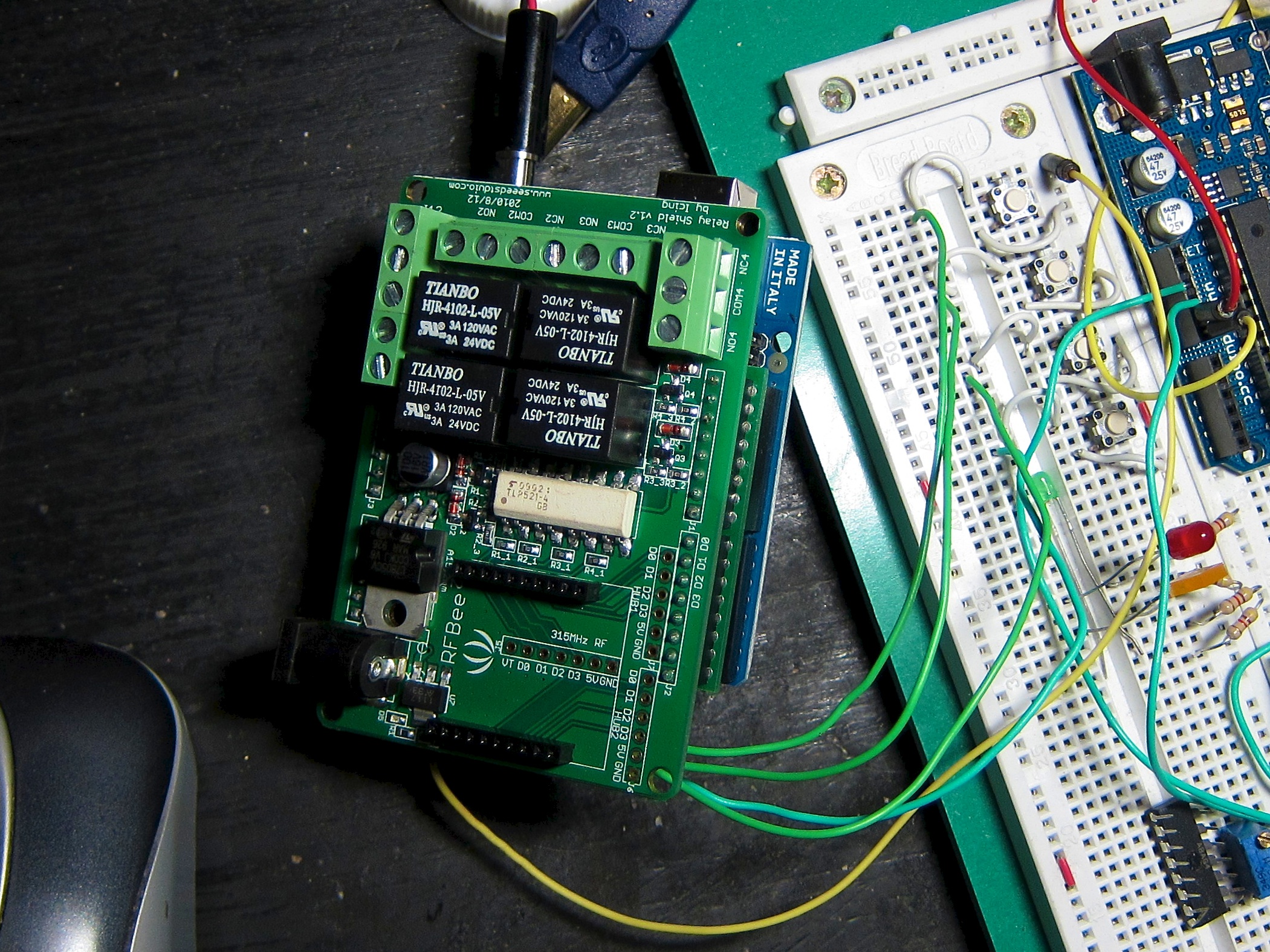
Oh crap, here comes the picture.

The buttons are connected via one of my Stupidshields, since that way I didn’t have to solder anything to the Seeeduino board for the demo.

Using the Sparkfun Speakjet Voicebox Shield with an Arduino in Passthrough mode

Nope, no music associated with this post either. There is a followup post, where I talk about the TTS256.

I wrote this junky piece specifically because when I was looking for the answer I found a lot of wrong information.

I recently puchased a Voicebox shield based on the Speakjet from Sparkfun Electronics for an Arduino project. The Speakjet is an embedded chip that essentially does allophone voice synthesis. That means you can’t send it plain text like “this article sucks”, but you send it a stream of codes for the allophone (vocal sounds) to build up words.

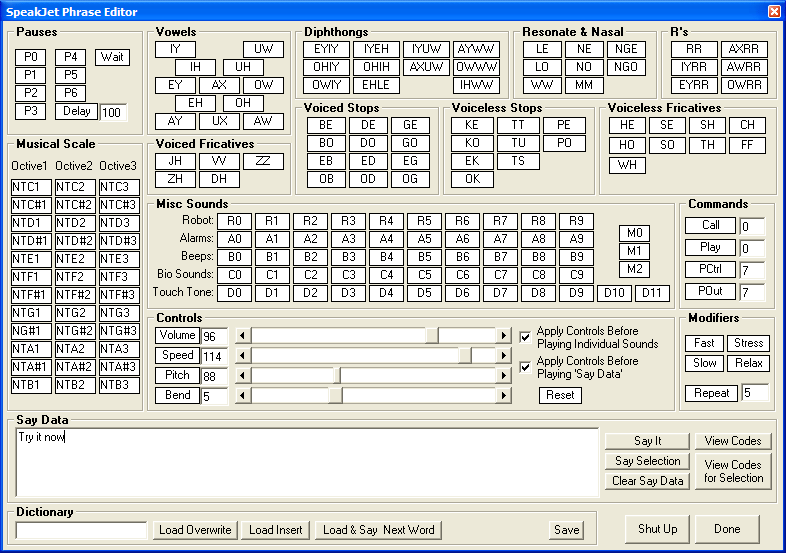
A useful tool from Magnevation, the folks to make the Speakjet, is this Windows program called Phrase-A-Lator, which has a fairly decent dictionary of word-to-allophone translations, and has the ability to pump information directly at a speakjet connected to a PC via a serial port. That’s nice because you program the EEPROM with some phrases directly, and test out how your phrasing sounds. Then with Phrase-a-Lator you can convert the text/allophone string into the proper codes to be sent to the Speakjet chip, and use that in your Arduino code.

The alternative to this is to buy the TTS256 chip, which I neglected to do, which contains a dictionary of words-to-allophones. You can solder it directly onto the voicebox shield, and then can just pump regular english text at the chip and have it speak.

With the Voicebox Shield on the Arduino, the problem is that the Magnevation software can’t communicate directly with the chip, since the communication is to the Arduino itself. No problem, you just need a simple little host program on the Arduino to redirect information to the Speakjet.

The wrinkle in this is how the Magnevation software works. The Magnevation software opens and closes the serial port every time you send information down. With the way the default Arduino setup is, when the USB-Serial connection is opened up by the host, it institutes a chip reset, and your program restarts. Then, of course, it will likely miss all the actual serial information Phrase-A-Lator sends as the Arudino’s onboard program gets up and running.

If you try my program below, and every time you communicate with Phase-A-Lator and all the chip does is constantly spout “READY”, that means the board is being reset, and you need to disable the auto-reset.

Luckily, I wrote an entire huge article on how to disable the auto-reset once before.

The other thing to watch with Phase-a-Lator is to disable Flow Control, since there is no flow control. If you leave it enabled it will just hang the software.

Here’s the Arduino code. It’s really simple. It also actually works, at least for me, as opposed to lots of other sample code you can find to do this. It uses NewSoftSerial, because NewSoftSerial is the bomb.

If you don’t know how to copy and paste, you can download this tiny pde from here.

//
// A Dirty SpeakjetPassthrough program for the Arduino. 
// For testing the Arduino VoiceBox Shield from Sparkfun.com
// http://www.sparkfun.com/products/9799
// 
// This program lets you test your Speakjet VoiceBox Shield with 
// Magnavation's (maker of the Speakjet chip) Phrase-A-Lator test program. 
// http://www.magnevation.com/
// 
// Steven Cogswell, July 2011. 
// Includes probably five lines taken from the Sparkfun demo code. 
#include <NewSoftSerial.h>

#define txPin 2   // The pin for communicating to the Speakjet chip on the Arduino
#define RES  3   // The reset pin for the Speakjet. 

byte in;

// The NewSoftSerial object to talk to the Speakjet.  The Voice Shield doesn't have
// any communication back from the Speakjet chip, so all you need is Tx. 
NewSoftSerial speakjet(0,txPin);

void setup() 
{
  Serial.begin(9600);   // Serial communication with computer
  speakjet.begin(9600);   // Serial communication from arduino to Speakjet chip 

  //Set up a serial port to talk from Arduino to the SpeakJet module on pin 3.
  speakjet.begin(9600);    

  //Configure Reset line as an output
  pinMode(RES, OUTPUT);

  //All I/O pins are configured. Reset the SpeakJet module
  digitalWrite(RES, LOW);
  delay(100);
  digitalWrite(RES, HIGH);    // Doing this reset will make the chip say "Ready" 
  
  // This says "Try it now", generated from the PhrasALator and just pasting it in. add a 0 at the end to null-terminate the string. 
  char message[] = {20, 30, 21, 114, 22, 120, 23, 5, 8, 191, 7, 148, 155, 8, 129, 8, 191, 142, 163, 0};
  speakjet.print(message); 
}

void loop() {
  
  // Loop forever, read a byte from input and just push it to the Speakjet.    
  if (Serial.available()) {
    in=Serial.read(); 
    speakjet.print((char)in); 
  }
}

Here’s a couple of Phrase-A-Lator screenshots

When you have your phrase right, you can select “View Codes” to get the numerical allophone sequence and paste it into your Arduino code, as the program above does.

Here’s a voice demo,

You can also visit this website, which has nothing to do with any of this.

And as usual, you need a picture of an Arduino in your post in order to be taken seriously.

You don’t give a shit what I think of Duke Nukem Forever, and neither do I.

This post spoils every game ever made, if you don’t like that, too bad. There’s also no music associated with this post. You would have thought I’d have done the obvious thing, wouldn’t you?

I recently purchased and played Duke Nukem Forever, I played it, I liked it – with caveats, and since it’s such a popular topic for people to bash on it I figured I’d get my two cents in. Although this rambling bullshit reads more like thirty-five cents.

I’ll start off by mentioning the fact that you can get the “original” Duke Nukem 3D from GOG.com, which as of this writing is only US$5.99. It’ll run on just about any hardware these days, so you haven’t got much of an excuse. You can match that up with the EDUKE32 project, and run it with nice modern resolutions on everything including your toaster.

We’re in an age these days where getting a vidjagame to market takes lots of people, lots of time, and lots of money. The story of getting this game to market is a tortuous path and I’m not going to bother going over any of it here, there are tons of people who’ve already beat that dead horse.

These days video games are really more interactive cinema than games. My first slap in the face for this was the first Mass Effect game. It’s a computer program that pretends to be an RPG, but is really just “run down a hallway, mash buttons for a minute, then watch a long cutscene”. Mass Effect 2 was the same thing, but more. Run down a hallway, mash buttons, watch cutscene with intricately detailed breasts, then run down the next hallway.

Mass Effect 1/2 “worked” for me, not because they were really that great a game, but because they had a pretty decent story behind them. i.e. – if you just strung out the game’s cutscenes one after the other that would probably have been just as an enjoyable an experience as ‘playing’ the game.

Let me go back a little bit in time. The original Duke Nukem 3D (and Doom, and Marathon, and countless other games of that era) were essentially “run around and kill everything, and eventually find the button that ends the level” games. Usually you had to do some exploring, find the red/blue/ultraviolet key, and then fight a hundred hojillion monsters.

That’s not to say that Duke Nukem 3D/Doom weren’t fun. They were great fun. I was in graduate skool at the time those came out and spent lots of time playing them and enjoying it. I wasn’t a big fan of the violence, but I was huge fan of the exploring concept. I just wanted to run around and see all the cool stuff the game designers had put into it.

Marathon was one of those games that rewarded you for your “running around looking at stuff” mode. Marathon had, I thought, I pretty nice storyline attached to it. Even though the story went completely insane for Marathon Infinity. The drawback of Marathon was that you only “got” the story by reading the terminals, and by “reading” I mean reading. You activated a terminal and usually had to read a wall of text. No voice would read it, no cutscene. If you hadn’t killed all the Pfhor one would usually come up and beat you to death as you were reading. A player could get through all the Marathon games without paying attention to a single thing, and just run around killing things and pushing buttons.

(These days you can download Aleph One, with all the original Marathon levels for free, and I recommend the Marathon Rubicon scenario).

From there, probably my favourite game of all time was the original Deus Ex. Compelling story, voice acting, cutscenes, and importantly: large game levels with tons of ways to complete the objective. A lot of people put this down as choosing either “guns blazing” or “stealth”, but I felt it was a lot more than those options. Accidentally trip an alarm? That’s okay, you haven’t screwed the level. Run past some guys rather than kill them? You can get away with that. I loved the fact that there were tons of plot elements that you didn’t have to do in order to advance the game, so these “secrets” were truly secret. That made the replayability great, since you could go back and and explore areas you hadn’t even noticed the first time. The multiple endings thing was touted at the time, but it didn’t make a lot of difference to me since you could just save and complete all three within about five minutes of that save point.

Deus Ex 2? No. Didn’t like it. Universal ammo and crummy graphics? No. Sniper rifle that made characters do a 360 cartwheel? No.

Deus Ex 3… err Project Snowblind? So disappointing I didn’t even finish it.

Deus Ex: Human Revolution? Not out yet, we shall see. I want to believe.

Games have become bigger and bigger investments for companies. With this inflation, people expect more and more from games. If you bring out a “simple platformer” game these days you’re an indie developer, are expected to charge five bucks, and not be very complicated.

I’m not going to defend Duke Nukem Forever, as overall I thought it was a fairly average game. I don’t think it’s the worst game ever made though, unlike lots of folks. No, the worst game ever made is X3: Terran Conflict – which consists of spending an hour of real time flying somewhere in space while doing nothing, getting your ass trashed in five seconds, and then having to start over.

What’s my favourite game ever? No question, Nethack. No, fuck you. I had more fun pushing ascii characters around a randomly generated map than I ever had being called names by 14-year olds.

So, why don’t I start off with some criticism: people complain about Duke Nukem Forever’s linear gameplay. I agree. The entire game is Duke-on-a-rail. Run down the hallway, get stuck shooting enemies until you kill them all, then the door opens to the next section. In lots of cases you can’t even backtrack. That’s not new in games though. Mass Effect 1/2, F.E.A.R., are all games essentially on rails. Mass Effect 2 had the story to back it up. Here, I’ll put that graphic here that everyone’s been using these days, just so I’ll look cool.
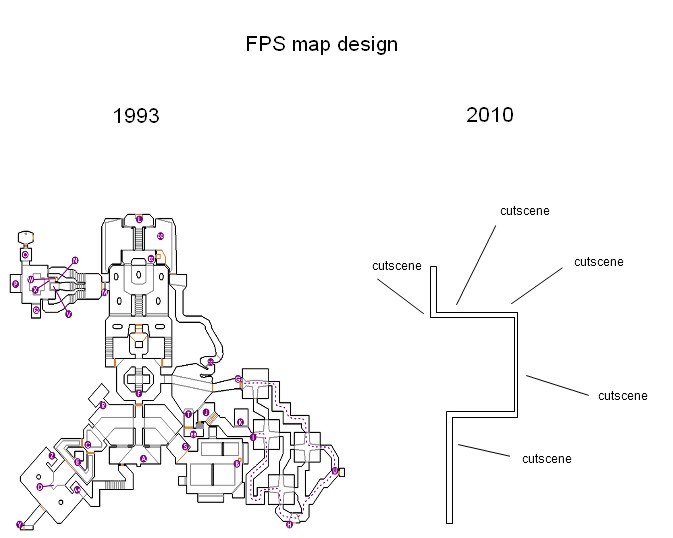
(I wish I knew who made that graphic originally, so I could properly give them credit).

The “on rails” part is really apparent in that disappointing underwater sequence. In Duke Nukem 3D you could “find” scuba gear and swim around underwater levels at length until the air ran out. In Duke Nukem Forever you have exactly enough air to swim to the next conveniently placed set of bubbles coming from a pipe. Too slow and you’re dead. That’s the worst kind of rails because you feel the underwater area is open and explorable, but you can’t go anywhere because you can’t make it ten feet if there aren’t convenient pipes bubbling in that direction. In fact, you just end up following the pipes (rails) to the conclusion.

The antithesis to this, for me, at least, was Elder Scrolls IV: Oblivion. When Oblivion came out I was so enamored with the visuals and the big open playfield that I was actually completely disinterested in doing any actual part of the game. I was far more interested in going to the top of hills and looking at vistas than going through the linear dungeons and – worst of all – trying to find 20 Nirnroot for some dumb fuck NPC who then turns around and demands I go get even more. Fuck Nirnroot.

The good inbetween “wanting to look around and see stuff” and “actually wanting to play the game” were Fallout 3 and Fallout: New Vegas. I think Fallout 3 was the first game since Deus Ex where once I’d finished it, I went back and started over again from scratch just to see more things the second time around.

And to the other side of the scale were the Grand Theft Auto games (GTA3, GTA San Andreas), where the game is big, open, and – to me – completely uninteresting. The “quests” in the GTA games were so tedious for me to try to complete, since you had to complete key parts to advance the game along. I was not interested in chasing a train on a motorcycle, or driving around trying to find 15 dropped porn mags in 1 minute. The highest point of fun for those was that in GTA San Andreas seeing how stupid a jump I could make in a motorcycle. I never finished any of the GTA games because they were so aimless they were boring. I bought GTA4, but it’s unplayable on my computer, so I never bothered even trying to get into it.

Starting with games like Quake 3 Arena and Tribes 2, games started to shift away from even having single-player modes. I don’t like to play online games, principally because I don’t like being called names by 14-year olds. Single-player games have suffered in complexity as a result, because I think game developers put more effort into the low-hanging fruit of decent multiplayer support than making it enjoyable for us rejects.

So, Duke Nukem Forever’s story: really, there isn’t any story here. The game is largely “I thought of this cool scenario for Duke Nukem, let’s get him from A to B to make this happen” I think of the scenario on the top of Hoover dam against the Battlelord where you run down a hallway (okay, the top of the dam), to trigger a scene where a big dude comes out and starts gunning at you. Then you realize why there are all these ammo-replenishing crates that were scattered down the length of the dam for you. The ends of the boss battles are all designers saying “Yeah, then Duke climbs up his back and rips off his tentacle, how are we going to implement that? Make players bash the spacebar”. Attempting to make a game out of a cinematic sequence.

Enemy models: The original Duke Nukem 3D, despite being a game where you essentially ran around and killed everything, had some pretty cartoony models. Cats with jetpacks, pigs with LAPD uniforms. Low-resolution sprites are easy to manage like that, and you have to make them cartoony since you can’t really make them realistic. You might as well run with that.

Duke Nukem Forever tries to show off a modern graphics engine with realistic gritty models. The large boss characters (that Battlelord, the Energy Leech, that dude at the end), who cares – those are big complicated guys. I was really disappointed with the current pigs/cats designs. The pigs/cats had no charm. The pigs are now just muscular humans with pig heads and pants and no shirts, and the cats with jetpacks – well, you can’t even really tell they’re cats. The colour palette of Duke Nukem Forever is in the vein of “if we make everything gray-to-black, people will think it’s gritty and real”. In fact, I had played quite a bit into the game before it clicked in my head, “oh yeah, those are the pigs/cats from the first game”. I’ll come back to this in a little bit.

These movies-become-games things are pretty hard to design and have the cinema flow properly from gameplay. Look at the Valve stuff – Half Life 2, Portal, and especially Portal 2. Portal 2 is a heavily scripted game and pretty dependent on playing along a rail. Do such a task, trigger an event at the end of it, which leads to another task, etc. Portal 2 does a really good job of obscuring that fact from the player, though. As you play through the game you’re not constantly being banged over the head with “once you cross that line on the floor, something will happen”, you get the perception that events are naturally flowing from your player’s action. These are hard to get right, and I figure are undoubtedly the reason why the Half-Life 2 Episodes take so damned long to come out.

Doom 3 was a big loser in this aspect. Most of Doom 3 revolved around “walk over a trigger point, lights go out, demon appears behind you, get your ass kicked”. After a while that got tedious. F.E.A.R. was similar. Duke Nukem Forever also suffers from this. In order to preserve the cinematic experience, you have to restrict what the player can do. No, you can’t go through that door until the next scene plays out. No, you can’t jump up on that surface because that’s not part of the script. Yes, you can destroy that because it’s important to trigger an event, but you can’t destroy that other thing because we haven’t planned for it. Key example of this are those little bouncy alien-trampoline things. You jump on one and it only bounces you exactly where it’s designed to throw you for the next part of the sequence. In Half Life, which also had bouncy things, you had to figure out how to use the bouncy things to get you where you wanted to go. Duke Nukem Forever just takes you there by the hand.

That was one thing I really liked about Deus Ex, was that most of the ‘objects’ in the world you could pick up and move around. Sure they weren’t useful, like plants and bowling trophies, but you felt like you had some measure of control because you could knock shit over. Contrast that with another game I played from that period, No One Lives Forever, which was pretty humourous and fun to play, but always frustrated me because you couldn’t push the chairs around on the floor. Everything might as well have been a crate. (Coincidentally, the second game in that NOLF series was also pretty heavy on the triggered-event-rail-story problem).

Essentially, designing a game that ‘plays’ well, and a game that looks like a good movie are two different things and hard to get right unless you put a lot of effort into it, and I don’t think the Duke Nukem Forever folks had a lot of time to do that. This game has been ‘in development’ for twelve years, but really I think it’s only been a year they actually worked on this version. If you look at the previously released ‘footage’ from the game you see most of them were mockups, not playable, or in most cases contained story elements that never made it to the final Duke Nukem Forever. When the final company in the chain got it’s hands on the task of making a game, they made a game quickly and put it out.

Watch The 1998 E3 Trailer, The 2001 E3 Trailer, none of that is in this game.

I do like that in the ‘game extras’ they include a timeline detailing out a lot of the horrid history of this game, including all those movies. At least they’re not trying to hide it.

The “no secrets” problem: Duke Nukem 3D was big on having hidden things to find, usually giving you something like atomic health or a gun, or something. Same thing for finding hidden rooms in Wolfenstein 3D: it wasn’t that what was in there was necessarily cool, it was that you explored around and found something ‘secret’ in the game. Duke Nukem Forever has, near as I can tell, zero secret stuff. The closest thing is “find all the items that give your ego bar a boost” (also an achievement, I hate achievements). No secrets means no incentive to want to explore the game areas, on rails or not, you don’t want to hang around to look for anything.

Technical issues: I’m an old guy and not actually a gamer. My PC is a little old, but played Duke Nukem Forever just fine. The loading times were absymal. Not seconds, minutes. I never timed it, because usually I’d just leave the room and come back when it was ready to play. Couple that with the checkpoint-save method (you never save, if you get greased you have to start over from the previous checkpoint), meant a lot of areas were damned frustrating until you figured out the only-scripted-way to get out without dying. The loading times were a real killjoy.

Okay, thats a lot of complaining on my part. Duke Nukem Forever has a lot of shortcomings as a game, and most of them come down to unrealized expectations. “This game could have been so cool if… “, “It would have been so much better if…”, “I wish this were like the original game where…”.

The thing is, I played Duke Nukem Forever to the end, I finished it, and overall I wasn’t actually disappointed. The game has a lot of faults, and it isn’t Duke Nukem 3D with modern graphics. I thought a lot of the cinematic stuff was well done, even if the story was pretty dull. Duke Nukem Forever could never live up to the hype and anticipation of a game so legendarily long in development. So at that point it’s best to turn that off and just live in the moment.

Having said that, let’s talk about the parts of Duke Nukem Forever that I really did like. Lots of reviewers got their Hatorade out for this game, but some bits they hated were what saved it for me.

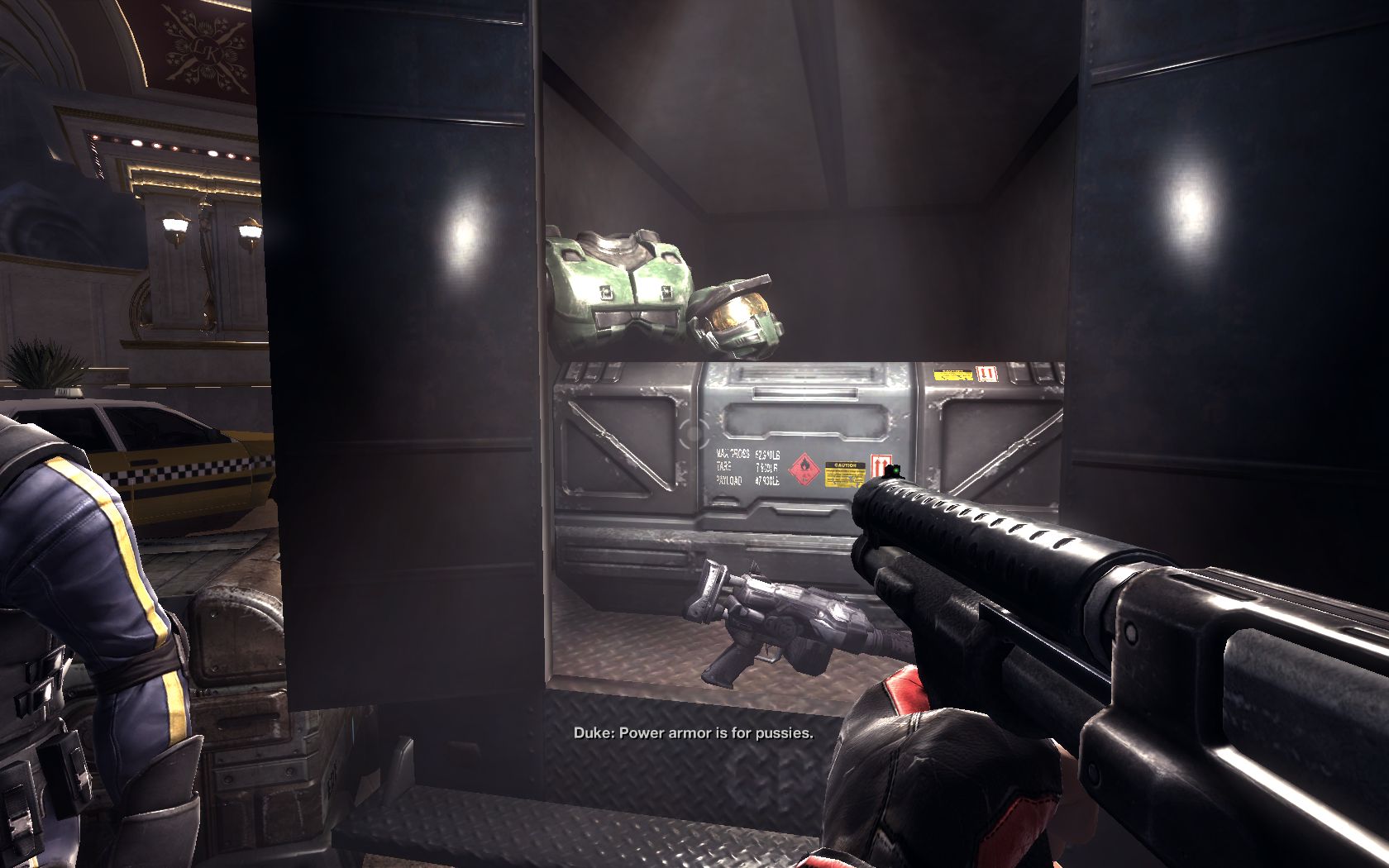
The nostalgic throwbacks and references: Early in the game Duke has to force open a door (by stupidly bashing the spacebar, but forget that) for the first time. The computer voice says you can’t go through because you need the red key. Duke says essentially, “I don’t need no red key” and forces the door open. Given that most of Duke Nukem 3D was “where the fuck is the red key?”, this really was great. The comment about the power armour (i.e. Halo) being for pussies.
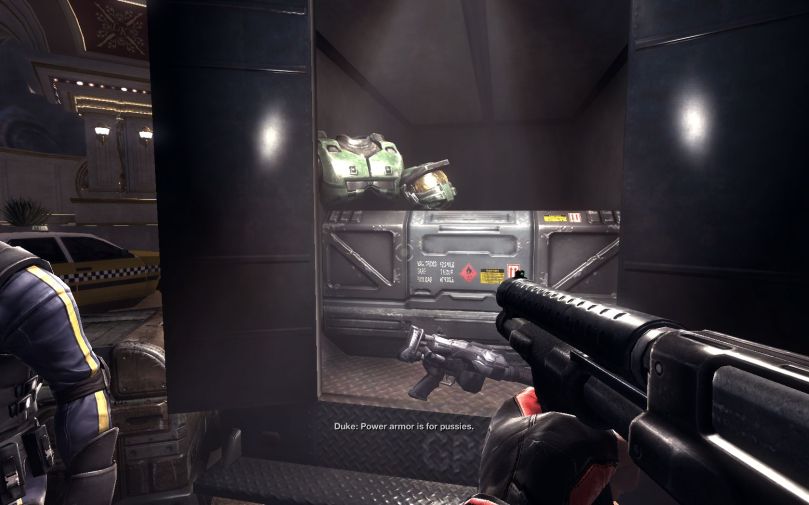
I enjoyed the shrunken-Duke-in-RC-car bit. I enjoyed running everyone over in the Monster Truck and making those jet-assisted jumps. I even enjoyed the pre-game intro sequence with Duke throwing a pair of dice with all the company logos who’ve had to work on this thing, leading into a recap of all of Duke Nukem 3D in stylistic form.

The whole ego bar thing: lots of reviewers hated this, but I thought it was well suited. The Duke “character” in all the games revolves around him being an over-the-top caricature. It sure beat wandering around with 3% health knowing you’ve used up all the health packs on the level, and begrudginly having to reload an older save game. People said the regenerating health promoted you to hide more and have less action, but I didn’t find that. Sure you ducked behind a pillar for a moment, but then your ego bar/health comes back up and you run back out into the action. This leads me to my next bit.

Action: Duke Nukem 3D was game about blowing shit up. You ran around and killed everything. Games these days have leaned towards ‘tactical’ stuff. Your Modern Warfare, your Battlefield, Mass Effect 2. Stay safe, hide behind things, use a sniper rifle when possible. Duke Nukem 3D and Duke Nukem Forever are games designed around getting maximal fun by throwing yourself into a hail of gunfire with your own guns emptying out until everyone is dead. I got a lot more enjoyment by charging at dudes with the shotgun than hiding behind a slot machine. At one point you man a cannon and blow up and entire mothership, what’s not to like about that? The end-boss battle with the Cycloid Emperor is where Duke Nukem Forever feels the most like a Duke Nukem 3D successor.

Carrying only two weapons: I didn’t care, you always find enough weapons lying around to trade when you need something bigger.

I liked a lot of the ‘destructability’ of the environments, in particular pillars – which when you gunned them turned into masses of rebar and concrete for a nice visual touch. I wish the game had more of that. Blow up slot machines, knock shit over. That takes more design and thinking and time though, and this game didn’t get that. One of the best things about Fallout 3 I liked to do was blow up abandoned cars, something you don’t get to do a lot of in Fallout New Vegas because there aren’t many abandoned cars.

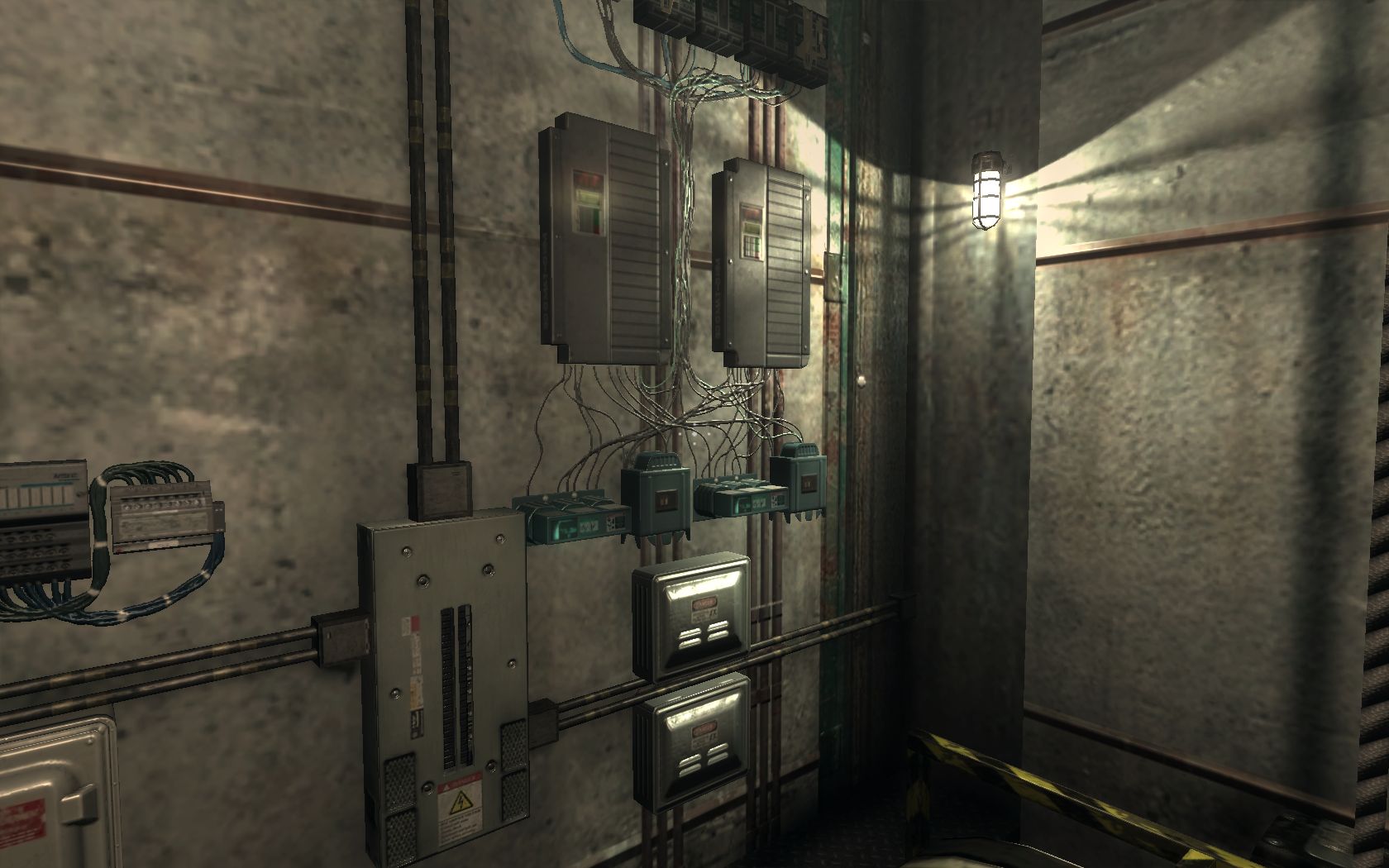
As I’ve said, I’m old and lame, and one of the parts I got the biggest kick out of were these:
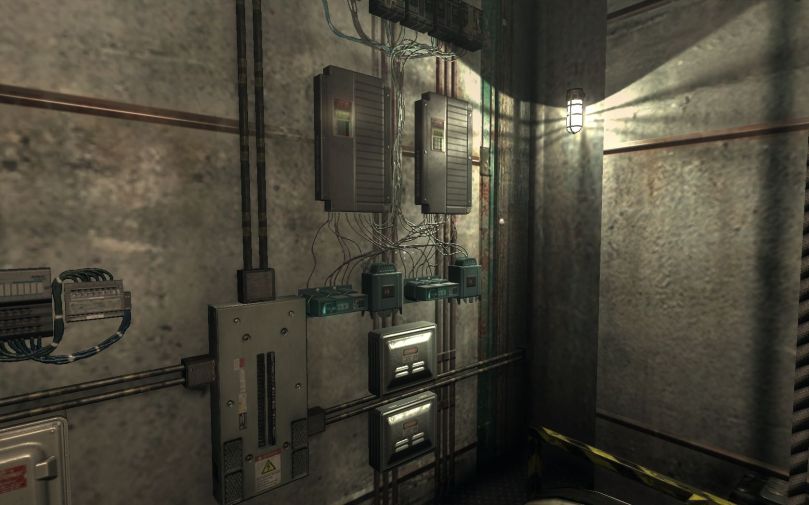
Yeah that’s right, I’m an engineer, I appreciated the realistic looking wiring and fire controls panels.

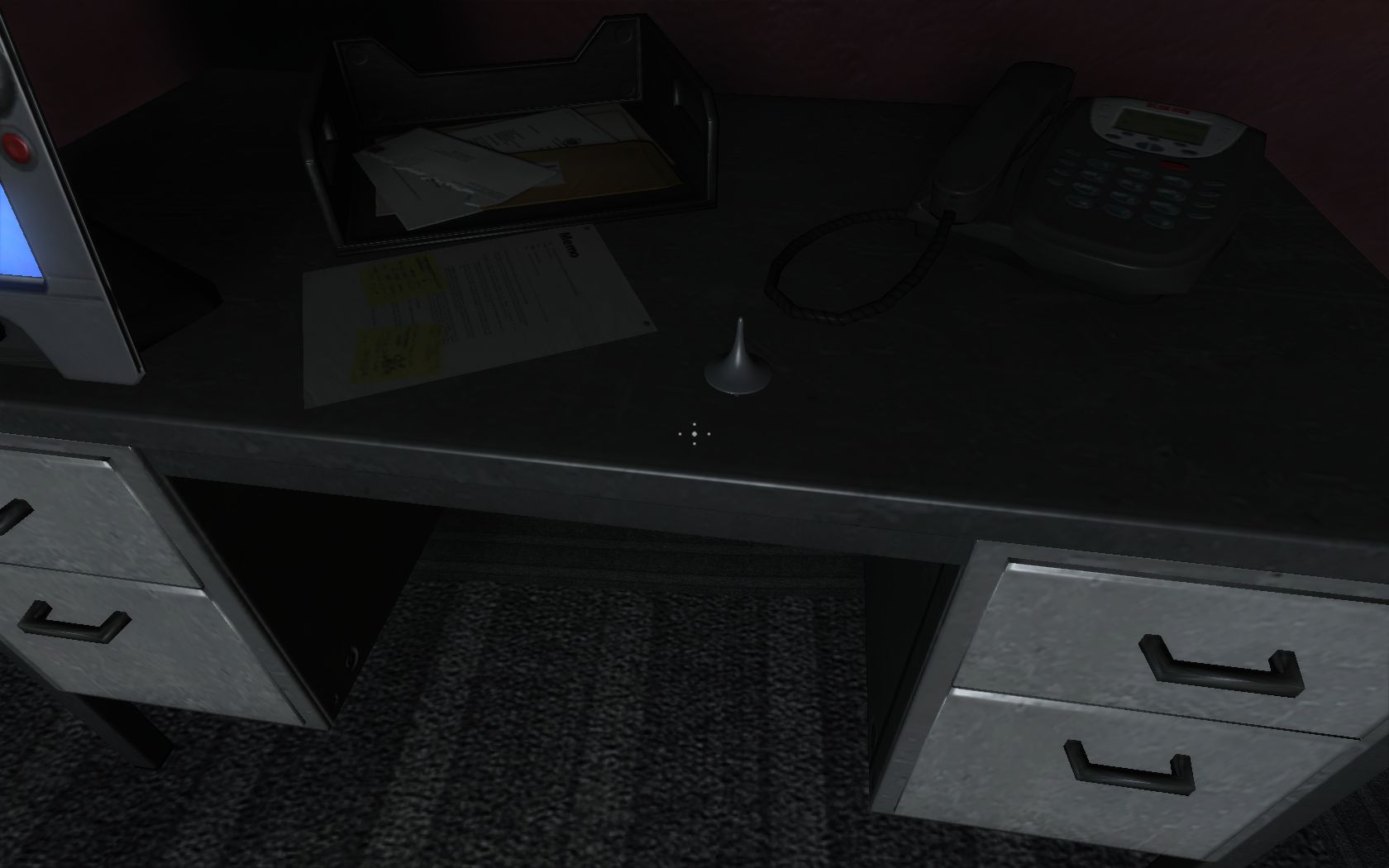
It falls into the pop culture references category, but here’s a simple bit that I think impressed me the most.
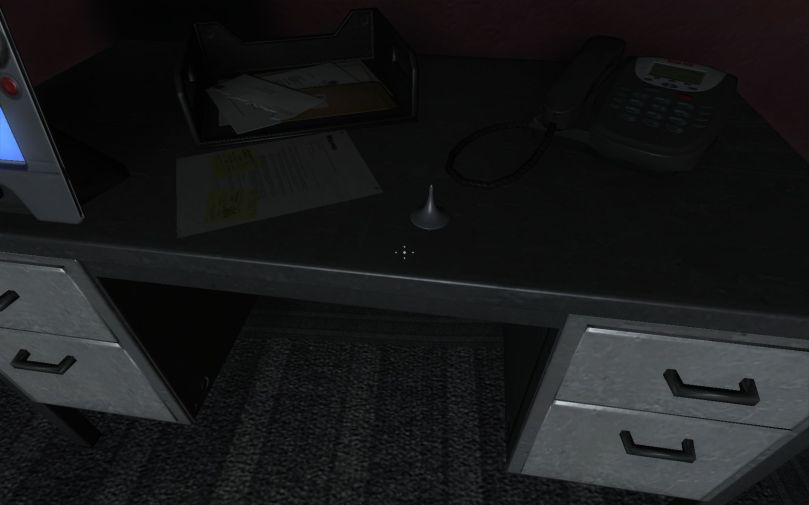
During a part which turns out to be a dream sequence, there’s that little spinning “totem” from the movie Inception on a table, happily spinning away, back and forth. That bit there sold me on the game. Seriously.

A lot of reviews of this game complained about the treatment of women, and aspects of the game they considered misogynistic. Seriously, did you not play Duke Nukem 3D? I’m not talking about the pixellated strippers – if you shot the strippers in Duke Nukem 3D you usually got penalized by having more enemies show up. I’m talking about the final battle with the Alien Queen, where in the game’s final cutscene Duke shoves a bomb up some orifice (take your pick which one you think he uses), makes a glib statement about abortion, and blows her completely up. Both games are excessively over-the-top on Machismo – just like most action movies.

Finally, the bit that everyone seems to mention: fishing out the turd from the toilet at the beginning of the game (which you can also do later on). I think that was well executed. After all, how many games do you try and go around and ‘action’ everything to see what you can do with it? Given that lots of Duke Nukem Forever you actually can’t interact with, I thought it was neat you could pick up that turd, and then get the voiceover along the lines of “who the hell picks up a turd, now what am I supposed to do with it?”, then toss it against the wall. I thought that was comedic genius. It’s also backed up by one of the million different ‘play tips’ that you get to read while waiting a half hour during the loading screens, which says something to the effect of “we wanted to to make picking up the turd make your ego go down, but didn’t”.

Duke Nukem Forever is a flawed game. Flawed a lot more than lots of games. Worst game ever? Hardly. Enjoyable? For me, it was. Worth full price? Hell no, wait for this to go on sale for ten bucks.

Now, making the game better. This was the whole reason I decided to write all this bullshit in the first place, because I saw this comment on reddit and didn’t want it to go by to be forgotten. This game was so long in development, imagine how this could have turned out:

Sam: Dude, I had this epic vision of Duke Nukem Forever
Kenneth: so did 3drealms
Sam: like why throw out each previous engine when you have to catch up with the times?
Sam: Here’s what should have happened.
Sam: Duke powers through two gorgeously rendered Crysis-like levels before the aliens hit him with a Retrotime Gun
Sam: then he ends up in the pixelated quas-3d of the original Duke Nukem
Kenneth: epic
Sam: and is like “what the helll”
Sam: and he has to fight his way back through 10 years of FPS gaming engines
Sam: see this is what I was desperately hoping was going on through all those ten years
Sam: they weren’t WASTED years
Sam: they were carefully stored
Sam: DNF was to be the epic panopolistic archaeological journey of the Perfect FPS
Sam: oh wait except it wasn’t, they were a bunch of incompetents bumbling away a decade
Sam: O WELL

Seriously, if the game had gone this route, and actually switched game engines and visual design during the game, I think that alone would have made it the game of the year. That’s the Duke Nukem Forever I want to play.

I don’t care what you think, AWTFY.

A Minimal Arduino Library for Processing Serial Commands

Here’s some nice music to listen to while you read this long and boring article:

Note: there have been updates to this library to include support for SoftwareSerial since this post was originally published.  The github version is the most current.

For lots of software projects, I end up writing stupid little utility libraries so I don’t have to keep re-writing crap over and over. Hence my earlier SerLCD and ADT7310 libraries I’ve published here. Here’s another dinky little thing I wrote because I was unsatisfied with the alternatives. Frequently I write code that has to interact with a host computer. The Arduino boards have a very nice, very easy to use USB-to-Serial connection on them, so you just have to write your host program to send serial bytes and you can communicate with the arduino board. Frequently what I end up needing is the arduino to respond to some commands sent from the host computer. Things like “turn off that relay” or “process this” or “move this motor to this position and stop” or “holy shit the building is burning down everybody run”. If you RTFM, the arduino libraries tell you to use the “Messenger” library for doing serial command processing (which I did, a long time ago). Unfortunately, as you then follow the trail, you are suggested in the modern age to instead of Messenger to use CmdMessenger. Stupid documentation in a Wiki. There are also things like Firmata and Bitlash, but they’re really more extensive than just having your arduino program talk to your host program. There’s nothing really wrong with CmdMessenger. It works fine. I just don’t like it. I don’t like that it depends on two other libraries (Arduino Streaming Library and Arduino Base64 Library ). I also don’t exactly see why you need base64 except to run the demo code. I also don’t like the messenging format. The commands back and forth end up just being enum’s of the commands you’ve added handlers for, so the commands all look… strange. From the example in the CmdMessenger library:

// Try typing these command messages in the serial monitor!
//
// 4,hi,heh,ho!;
// 5;
// 5,dGhlIGJlYXJzIGFyZSBhbGxyaWdodA==;
// 5,dGhvc2UgbmFzdHkgY29udHJvbCA7OyBjaGFyYWN0ZXJzICws==;
// 2;
// 6;

(The actual commands shouldn’t make any sense unless you’ve looked at what the demo code does, I just repeat it here to show the formats). All the commands become “number,something,something, …” and the number depends on what order you’ve added the handlers, so you have to do your own bookkeeping to know which number belongs to the enum of the command handlers. There’s nothing wrong with this. If you’re writing code on a host computer, the host just wants consistent format. Frequently when I’m testing I sit with the serial monitor window open and fire down commands myself. There are also times when debugging that it’s nice to just look at the commands and understand what the hell is going on. So I finally got fed up and wrote my own SerialCommand library. I based a lot of the conceptual idea off how Dreamcat4 organizes CmdMessenger. You initialize a SerialCommand object by pushing pointers to functions and associating them with a received string. The string is case-sensitive. e.g. –

// Setup callbacks for SerialCommand commands
SCmd.addCommand("ON",LED_on);       // Turns LED on
SCmd.addCommand("OFF",LED_off);        // Turns LED off
SCmd.addCommand("HELLO",SayHello);     // Echos the string argument back
SCmd.addCommand("P";,process_command);  // Converts two arguments to integers and echos them back
SCmd.addDefaultHandler(unrecognized);  // Handler for command that isn't matched  (says "What?")

The second parameter is just the function to call when that command is received:

void LED_on()
{
  Serial.println("LED on");
  digitalWrite(arduinoLED,HIGH);
}

A SerialCommand object maintains a char[] buffer, that fills with characters from the Serial() stream. When the terminator character is received (in my case, the carriage return, or ‘\r’), it then scans the buffer looking for the first word in the buffer to be the command (delimiter defaults to the space character, but you can configure that in the library). The buffer is of fixed size (configurable), and just wraps around if you overwrite the end, so it doesn’t crash but might give unintended results if you try to receive a command larger than the buffer. There is a .clearBuffer() routine, which you can use to zero out the buffer to be sure. The buffer also zeros out when a command gets recognized and processed. In the handler, you can call the .next() function to parse out the next token. It comes out as a pointer to a char string, so you can use atoi() or whatever to convert to a numeric format or do further parsing. You can keep calling next() until it returns NULL, meaning no more arguments.

void SayHello()
{
  char *arg;
  arg = SCmd.next();    // Get the next argument from the SerialCommand object buffer
  if (arg != NULL)      // As long as it existed, take it
  {
    Serial.print("Hello ");
    Serial.println(arg);
  }
  else {
    Serial.println("Hello, whoever you are");
  }
}

Essentially the whole library is just an interface to a string buffer and the strtok_r() command. It doesn’t do a lot, but it does what I want. Maybe you’d like it, but I doubt it. You can download the library here or from my repository on github. My github version is the most current one. It includes a stupid demo program. You won’t like it, it won’t do what you want, you won’t like my coding style, and if you do end up using it you’ll tell your boss you wrote it yourself and strip out my attribution and LGPL license, but hey. It works for me, that’s why I wrote it. You’ll probably like CmdMessenger a lot better. As well, it was pointed out to me by Stephen Lake that Stefan Rado (github user kroimon) has made a modified version available on github, which you might find more appealing. As usual, unzip it and drop the folder into your libraries folder (e.g. My Documents\Arduino\libraries, on Windows). In the tradition of useless sample output, here’s some useless sample output: and because apparently you’re not allowed to post about arduino on the intarweb without including a picture of an arduino, here’s arduino Mega running the SerialCommand demo program. Not like you can actually tell, but hey.

An Arduino-Based MIDI Wah Controller for Logic Pro

Update: Do you not care about stories or electronics and just want to buy something that works? I bought one of these.

(There is no actual music associated with this post)

Literally thousands of years ago, I wanted to construct MIDI controllers to do musical stuff. Back then at the dawn of history assembling electronics to do even simple MIDI tasks was both expensive and a pain in the ass. I spent a lot of money on joining the IMA, getting spec sheets, and as usual did jack shit.

Luckily, as the centuries progressed, some smart folks came up with the standard Arduino microcontroller platform for doing physical computing. Also, some other smart people at Sparkfun made a pre-assembled optoisolated MIDI shield, to save me the trouble of prototyping one.

Although the arduino platform communicates over USB, to my knowledge without some severe hacking you can’t get the arduino USB to act like a MIDI-USB connection (ie – where the arduino is seen as a straight up MIDI device over the USB cable, like a modern keyboard or electronic drum pad). The Sparkfun shield has the familiar 5-pin DIN plug that all my MIDI stuff used to have back in the 80’s. For my music crap I use a Presonus Firestudio Mobile which very conveniently has a breakout on the back to hook up a 5-pin DIN MIDI connection and have it communicate over the Firestudio’s Firewire bus.

There were some rumblings that with the Arduino UNO platform that it would make developing USB-MIDI devices easier. This fellow known as “darren” has a project where he has firmware that enables this, but I haven’t tried it. I started this project long before the UNO was even available.

The part I really wanted this for was to make a Wah/Volume pedal controller that interfaced with Logic Pro. Logic comes with a lot of nice effects, but if you don’t have an outboard controller you’re stuck manipulating things with a mouse, and often that means adding effects after you’ve played the track. It can be hard to play guitar and use the mouse at the same time.

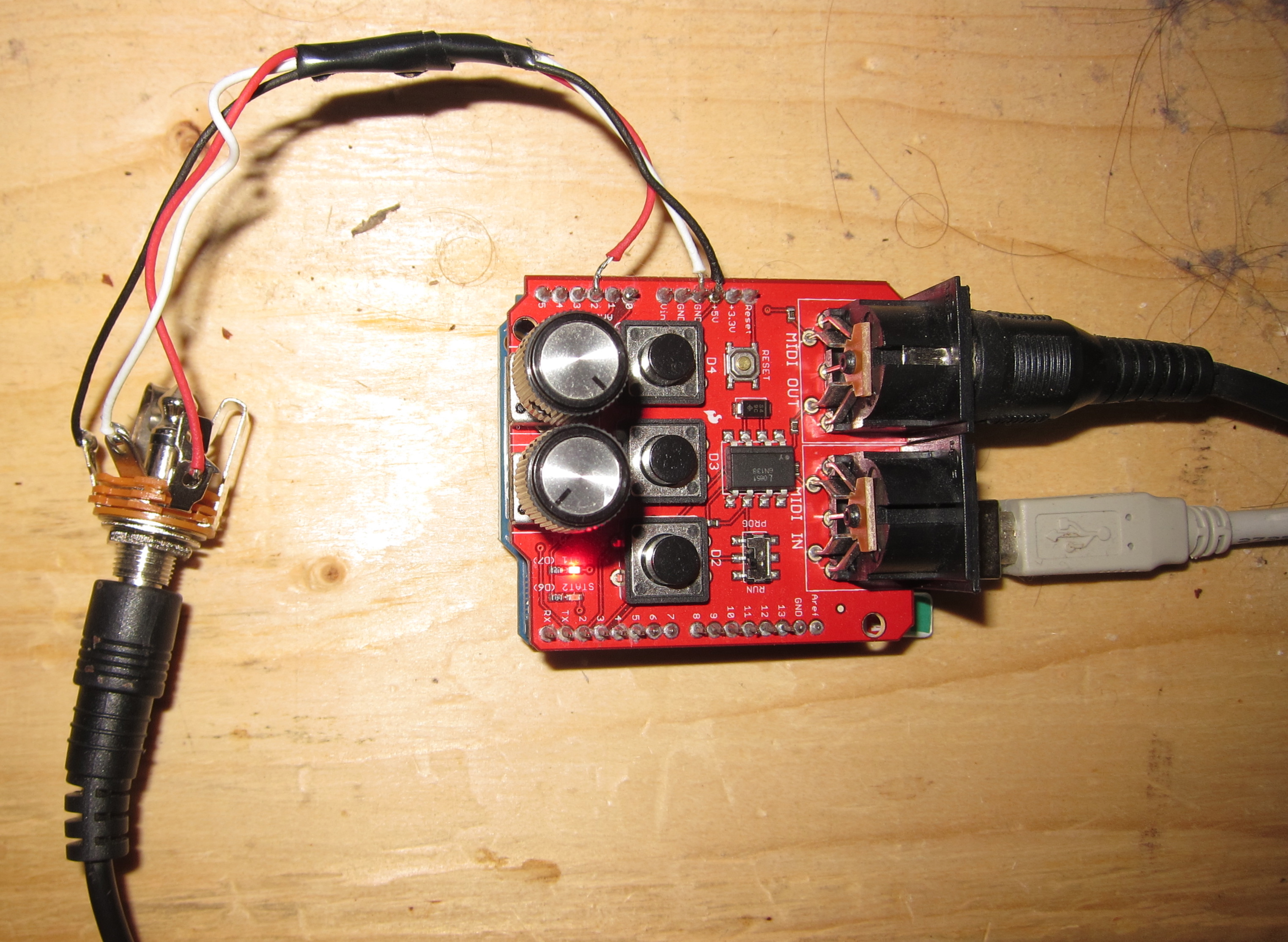
Since I wanted a wah-pedal interface, I got an m-audio EX-P pedal. It’s cheap, pretty basic, and isn’t much more than a cheap pedal that turns a potentiometer and has a 1/4″ output plug. The Sparkfun midi shield already has potentiometers hooked up to analog input channels A0 and A1, so I wired up the pedal to A2.

In the picture, the USB cable is just providing power. The MIDI cable runs to the Presonus Firestudio, and the the A2/5V/GND is wired to a 1/4″ jack which you can plug the pedal into. I’ve only tried this with the EX-P, but really any voltage control pedal should work the same.

With the hardware in place, all you need is some software written to the arduino board and you’re good to go. Since I’m feeling generous at the moment I’ll include my code I wrote to make all this work. It handles up to six inputs (although only three are enabled by default). It also has the ability on the fly to set the min/max position of the controller for each of the inputs. This is helpful if you’ve got a pedal or a potentiometer or whatever that swings a great distance and you get tired moving your foot that far. I wrote the software with the idea that I had no other hardware connected to it: more buttons and an LCD display would have been nice, but instead I kept it to just control via the shield’s three on-board switches and two LED’s. Hence there’s some sequences and modes you push the buttons in to program it, and the LED’s flash to let you know which mode you’re in. Most of the code is actually that.

The software is generic, in that it doesn’t have to control “Wah”, you can control any assignable midi parameter with it. Use it to control filter sweeps, or volumes, or mix levels or whatever you like. If you get ambitious you can build out a whole set of pedals and knobs and run it like your own little command and control center.

Normal operation:

  • Short press of D4 turns MIDI output on and off (LED STAT1 lights on and off).


Programming mode operation:

  • Long press of D4 puts things into programming mode: LED STAT 1 flashes a number of times indicating which analog input channel you’re adjusting (one flash, two flashes, three flashes, etc). Long press of D4 leaves programming mode
  • With the analog input channel selected above, use D3 to set the minimum position for controller. Push D3, LED STAT 2 flashes. Move the controller to the point you want to be called minimum, and push D3 again.
  • With the analog input channel selected above, use D2 to set the maximum position for controller. Push D2, LED STAT 2 flashes (different rate than for D3). Move the controller to the point you want to be called maximum, and push D2 again.

Since nobody reads, you can download the code here or download it from github. It uses one external library, Bounce, for debouncing buttons. You’ll have to install that too. It’s not hard, and makes debouncing buttons a lot cleaner in your code. I based the initial version of this off code by “Tubedogg” and if you search hard you can probably find one or two lines from it still in there. If you don’t like the coding style of the code which I have given you for free, well that’s just too bad, isn’t it?

The code has a ‘debug mode’ where if you compile with “DEBUG” defined (see code) that it will spit verbose human-readable information out the serial (nee USB) port for debugging. For actual use you need to undef DEBUG and recompile, to make it use the proper MIDI data rate and message format.

A long time ago, I did up a quick demo just to see it work. You get points if you identify the riff.

but here’s one of the project using the actual pedal and software:

For the exceptionally lazy who can’t read, here’s the source code. Same thing as what’s in the file you can download above.

#include <Bounce.h>
//
// Sparkfun Midi shield as midi controller for footpedals and maybe other things.
//
// Steven Cogswell   steven.cogswell@gmail.com
// May 2011
//
// Sparkfun midi shield:  http://www.sparkfun.com/products/9595
// Some code and concept by Tubedogg 12/2006; fabian at tubedogg.de  http://www.arduino.cc/cgi-bin/yabb2/YaBB.pl?num=1165833586
// Uses the "Bounce" library by Thomas Ouellet Fredericks  http://arduino.cc/playground/Code/Bounce

// Rember to have the Sparkfun midi shield Run/Prog switch in the appropriate position.  

// The analog potentiometers on the Sparkfun board A0/A1 give 0-127 midi for full range.   You can change defaults with the
// midiAnalogMax[]/midiAnalogMin[] Arrays below. 

// The three Sparkfun pushbuttons D2/D3/D4 are used to control modes.  This would have been easier with more buttons, but
// this way you don't have to add any mods to the board.
//
// Pushing D4 quickly (< 1000 ms) will turn the midi output on/off.  When it's off, move the controllers all you want,
// they won't output a midi value.
// Pushing D4 and holding for > 1000 ms will put things into the "Programming mode", in which you can set min/max positions for
// the various midi inputs.
// When in programming mode, the LED STAT 1 (the red one) will flash a number of times corresponding with the midi input
// you're changing (1 flash for on A0, 2 flashes for A1, 3 flashes for A2, etc, up to the max number of channels defined).
// Push D4 quickly (< 1000 ms) to increment which midi channel you're changing.  When you reach the last channel it starts over
// again with the first.
// When in programming mode:
// Push D3 - LED STAT 2 flashes, move pedal to minimum position and push D3 again.  Min value is stored
// Push D2 - LED STAT 2 flashes (faster), move pedal to maximum position and push D4 again.  Max value is stored.
// This can be useful for pedals - like mine, where you really want the pedal to be "0" at the bottom of the range.  If you set
// the min input position to be before the end of travel, you're pretty guaranteed to get min value at end of travel.  Also good
// if you get tired pushing the pedal all the way to the top, I suppose.
// To leave programming mode, push D4 and hold for > 1000 ms.  LED STAT 1 (the red one) will stop flashing.
//
// The arduino's LED (on the arduino board, not the sparkfun board) will flash when sending a midi message.  You can't see that
// LED very well, but hey it's there.  Lets you confirm your inputs are actually being sent.  

// Defining DEBUG will make the code spit out the "midi' messages in a human-readable format at 9600bps for
// convenience of debugging.  Otherwise it's 31250 bps.
//
#define DEBUG 1
#undef DEBUG     // Comment this line out to use 'debug' mode. 

// LED outputs and switch inputs
#define LEDarduino 13  // LED on Arduino itself.
#define LED1  6    // Note Sparkfun MIDI shield LED's are lit when "LOW" rather than "HIGH" (active low);
#define LED2  7
#define D2  2     // Pushbuttons on Sparkfun MIDI Shield.  Buttons are HIGH when not pressed and LOW when pressed.
#define D3  3
#define D4  4

// Parameters for debouncing the D2/D3/D4 button, uses the "Bounce" Library by Thomas Ouellet Fredericks
#define debounceDelay 50     // 50 ms is kind of long, but who cares?
Bounce D2bounce = Bounce(D2, debounceDelay);
Bounce D3bounce = Bounce(D3, debounceDelay);
Bounce D4bounce = Bounce(D4, debounceDelay);

// select number of desired analog inputs (max 6)
// The Sparkfun midi shield by default has potentiometers wired to A0 and A1.  In my case I have an m-audio pedal wired
// into A2.   Note this counts from 0, so "input_no = 2" means 0,1,2 are actively being read.
int input_no = 2;

// Midi parameters
// These arrays are defined up to 6 because that's how many analog inputs the arduino has.   If you specify input_no as less
// than six then you just have unused parameters.  It was easier to leave it like this than to try and save five or six bytes of storage. 

// define variables for the controller data
int AnalogValue[6] = {
  0,0,0,0,0,0};    

// define the "lastValue" variables
int lastAnalogValue[6] = {
  0,0,0,0,0,0};

// select the midi Controller Number for each input
int midiCCselect[6] = {
  1,2,3,4,5,6};

// select threshold for each analog input
int thresh[6] = {
  -1,-1,-1,-1,-1,-1};  

// Note that for Min/Max values, the analog potentiometers on the Sparkfun board are wired "backwards" from what I
// expect when turning them.  The values are set such that turning the knob clockwise increases the midi value.
// These can always be reprogrammed "on the fly" with the D4 programming mode.   You can use these to set defaults
// if you're consistent with your controllers' inputs. 

// Analog value for "0" Midi value
int midiAnalogMin[6] = {
  1024,1024,0,0,0,0};

// Analog value for Max Midi Value
int midiAnalogMax[6] = {
  0,0,1024,1024,1024,1024};

long theMillis;    // Stores current millis() time on an execution through the main loop(). 

int isOn = false;             // Midi on/off boolean
int inSetMinMode = false;     // in programming mode for setting the minimum boolean
int inSetMaxMode = false;     // in programming mode for setting the maximum boolean
int maxFlashRate = 100;       // Flash rate for LED STAT2 when inSetMaxMode (ms)
int minFlashRate = 200;       // Flash rate for LED STAT2 when inSetMinMode (ms)
long maxFlashMillis =0;       // time counter for flash rate for inSetMaxMode LED STAT 2
long minFlashMillis =0;       // time counter for flash rate for inSetMinMode LED STAT 2
int maxFlash = HIGH;          // State of LED STAT 2 when inSetMaxMode (toggles HIGH/LOW)
int minFlash = HIGH;          // State of LED STAT 2 when inSetMaxMode (toggles HIGH/LOW)

int setProgModeTime = 1000;   // Amount of time to hold D4 to put things into Programming Mode (setting min/max's)
long setProgModeD4;           // time counter for measuring time D4 held
int inProgMode = false;       // Programming mode or not boolean
int progInput = 0;            // Current midi analog input channel we are setting min/max mode for
int progFlashCount = 0;       // Counter for number of flashes for LED STAT 1 when in programming mode (indicates midi input being programmed)
int progToggle = HIGH;        // State of LED STAT 1 when programming (HIGH/LOW toggle)
long progFlashRate = 100;     // Flash rate for LED STAT2 when in programming mode (ms)
long progFlashPrev = 0;       // time counter for flash rate when in programming mode for LED STAT 1

// The Arduino setup.
void setup() {
  // Set LED's to outputs
  pinMode(LEDarduino, OUTPUT);
  pinMode(LED1,OUTPUT);
  pinMode(LED2,OUTPUT);
  // Set Switches to inputs
  pinMode(D2,INPUT);
  digitalWrite(D2,HIGH);  // Activate internal pullup resistor
  pinMode(D3,INPUT);
  digitalWrite(D3,HIGH);  // Activate internal pullup resistor
  pinMode(D4,INPUT);
  digitalWrite(D4,HIGH);  // Activate internal pullup resistor
  //  Set MIDI baud rate:
#ifndef DEBUG
  Serial.begin(31250);   // Actual Midi rate
#endif

#ifdef DEBUG
  Serial.begin(9600);  // More convenient for debugging over USB
#endif 

  // A brief little flash of the STAT1/STAT2 LED's to let us know it's booted and ready to go
  digitalWrite(LED1,LOW);    // Turns on the status LED's
  digitalWrite(LED2,LOW);
  delay(50);
  digitalWrite(LED1,HIGH);   // Turns off the status LED's
  digitalWrite(LED2,HIGH);
#ifdef DEBUG
  Serial.println("START");
#endif
}

// main program loop
void loop() {

  int toggle=HIGH; 

  int input = LOW;
  int analog = 0; 

  theMillis = millis();   // Current millis setting for comparing debouncing and led flashing times. 

  //--- D2 ----------------------------------------------
  // Pushing D2 will put the unit into "Set Maximum position" mode, LED1 will flash, you set the controller to
  // position for max value, push D2 again, and that position is recorded as the max controller output position.
  D2bounce.update();
  input=D2bounce.read(); 

  if (input == LOW && D2bounce.fallingEdge()) {    // D2 has just been pushed on this cycle.
    if (inProgMode == true) {
      if (inSetMaxMode == false)   {
        inSetMaxMode = true;
#ifdef DEBUG
        Serial.println("Setting Max mode Started");
#endif
      }
      else  {
        inSetMaxMode = false;
        midiAnalogMax[progInput] = analogRead(progInput);

#ifdef DEBUG
        Serial.print("Input ");
        Serial.print(progInput);
        Serial.print(" Max is now");
        Serial.println(midiAnalogMax[progInput]);
#endif 

        digitalWrite(LED1,HIGH);  // Turn off LED
      }
    }
  }

  // Handles the flashing of the LED during inSetMaxMode
  if (inSetMaxMode == true)  {
    if (theMillis - maxFlashMillis > maxFlashRate) {
      if (maxFlash == HIGH)
        maxFlash = LOW;
      else
        maxFlash = HIGH; 

      maxFlashMillis = theMillis;
    }
    digitalWrite(LED1,maxFlash);
  }
  //--- End of D2 Handler -------------------------------

  //--- D3 ----------------------------------------------
  // Pushing D3 will put the unit into "Set Minimum position" mode, LED1 will flash, you set the controller to
  // position for min value, push D3 again, and that position is recorded as the min controller output position.
  D3bounce.update();
  input=D3bounce.read(); 

  if (input == LOW && D3bounce.fallingEdge()) { 

    if (inProgMode == true) {
      if (inSetMinMode == false)   {
        inSetMinMode = true; 

#ifdef DEBUG
        Serial.println("Setting Min mode Started");
#endif 

      }
      else     {
        inSetMinMode = false;
        midiAnalogMin[progInput] = analogRead(progInput);

#ifdef DEBUG
        Serial.print("Input ");
        Serial.print(progInput);
        Serial.print(" Min is now");
        Serial.println(midiAnalogMin[progInput]);
#endif

        digitalWrite(LED1,HIGH);  // Turn off LED
      }
    }
  }

  // Handles the flashing of the LED during inSetMaxMode
  if (inSetMinMode == true)  {
    if (theMillis - minFlashMillis > minFlashRate) {
      if (minFlash == HIGH)
        minFlash = LOW;
      else
        minFlash = HIGH; 

      minFlashMillis = theMillis;
    }
    digitalWrite(LED1,minFlash);
  }
  //--- End of D3 Handler -------------------------------

  //--- D4 ----------------------------------------------
  // Pushing D4 enables midi control on/off and enter/leaving programming mode
  D4bounce.update();
  input=D4bounce.read(); 

  if (input == LOW && D4bounce.fallingEdge()) {   // Button has just been pushed on this scan, start counting time in setProgModeD4
    setProgModeD4 = theMillis;
  }

  if (input == HIGH && D4bounce.risingEdge() && (theMillis - setProgModeD4 > setProgModeTime) ) {   // A Release after long press has happened
    if (inProgMode == true) {
#ifdef DEBUG
      Serial.println("Leaving Prog Mode");
#endif
      inProgMode= false;
    }
    else {
#ifdef DEBUG
      Serial.println("Entering Prog mode");
#endif
      inProgMode = true;
      progInput = 0;       // Start programming with first channel every time
    }
  }

  if (input == HIGH && D4bounce.risingEdge() && (theMillis - setProgModeD4 < setProgModeTime)) {   // A Release after short press has happened
    if (inProgMode == true) {
      progInput++;    // select next midi input for programming
      if (progInput > input_no) progInput=0;     // wrap around if at last analog input
#ifdef DEBUG
      Serial.print("Prog channel ");
      Serial.println(progInput);
#endif

    }
    else {   // Not inProgMode, just turn midi on and off 

      if (isOn == false)   {
        isOn = true;
#ifdef DEBUG
        Serial.println("Midi control ON");
#endif
        digitalWrite(LED2,LOW);
      }
      else     {
        isOn = false; 

#ifdef DEBUG
        Serial.println("Midi Control OFF");
#endif
        digitalWrite(LED2,HIGH);
      }
    }
  }

  // Handles the flashing of the STAT1 LED when in programming mode.  Flashes a number of times
  // based on what channel is currently being programmed, then a pause, then starts again.
  if (inProgMode == true)  {
    if (theMillis - progFlashPrev > progFlashRate)  {
      progFlashPrev = theMillis;
      if (progToggle == HIGH)  {
        progToggle=LOW;
        progFlashCount++;
      }
      else {
        progToggle=HIGH;
      }

      // with the 2*input_no, then there will always be a series of "blank" states at the end of the
      // flashing sequence where the LED does not flash, so humans can tell when the "number of flashes indicates what channel"
      // sequence is starting and stopping.
      if (progFlashCount > 2*input_no) progFlashCount=0;
      if (progFlashCount <= progInput) {
        digitalWrite(LED2,progToggle);
      }
      else {
        digitalWrite(LED2,HIGH);     // HIGH is "not lit"
      }

    }    

  }

  //--- End of D4 Handler -------------------------------  

  //---- Midi Loop ------------

  if (isOn==true) {    // Only send midi messages if enabled
    for(int i=0;i<=input_no;i++){
      input = analogRead(i);
      // Using "map()" is a lot more convenient than writing a lot of if() blocks and math.    http://www.arduino.cc/en/Reference/Map
      // It also very conveniently works if you "flip" the min/max positions (ie - you like the knobs or pedals to work in the opposite
      // direction for increasing value and have used the programming mode to set min higher than max)
      AnalogValue[i] = map(input, midiAnalogMin[i],midiAnalogMax[i],0,127);
      // Constrain guarantees 0 <= midi <= 127 values are sent  http://www.arduino.cc/en/Reference/Constrain
      AnalogValue[i] = constrain(AnalogValue[i],0,127);
      // check if value is greater than defined threshold (good for resistive touchpads etc)
      if ( AnalogValue [i]>thresh[i] ) {
        // check if analog input has changed, don't spam output if controller value hasn't changed.
        // Noisy midi inputs are a pain.
        if ( AnalogValue[i] != lastAnalogValue[i] ) {
          digitalWrite(LEDarduino,HIGH);                     // light up LED to let you know we're sending data
          midiCC(0xB0, midiCCselect[i], AnalogValue[i]);
          digitalWrite(LEDarduino,LOW);
          lastAnalogValue[i] = AnalogValue[i];
        }
      }

    }
  }
  //---- Midi Loop ------------

}  // loop() ends

// This function sends a Midi CC.
void midiCC(char CC_data, char c_num, char c_val){

#ifndef DEBUG
  Serial.print(CC_data, BYTE);
  Serial.print(c_num, BYTE);
  Serial.print(c_val, BYTE);
#endif 

#ifdef DEBUG
  Serial.print("MIDI: ");
  Serial.print(CC_data, HEX);
  Serial.print(" ");
  Serial.print(c_num, DEC);
  Serial.print(" ");
  Serial.println(c_val, DEC);
#endif

}

If you don’t like it, well too bad.